<?xml version="1.0" encoding="utf-8"?>
<feed xmlns="http://www.w3.org/2005/Atom">
  <title>Toolinbox</title>
  
  <link href="/atom.xml" rel="self"/>
  
  <link href="https://en.toolinbox.net/"/>
  <updated>2022-12-17T09:06:30.007Z</updated>
  <id>https://en.toolinbox.net/</id>
  
  <author>
    <name>Toolinbox</name>
    
  </author>
  
  <generator uri="http://hexo.io/">Hexo</generator>
  
  <entry>
    <title>Klib - Kindle &amp; Apple Books Highlights Manager</title>
    <link href="https://en.toolinbox.net/Klib/Klib.html"/>
    <id>https://en.toolinbox.net/Klib/Klib.html</id>
    <published>2022-12-31T02:00:00.000Z</published>
    <updated>2022-12-17T09:06:30.007Z</updated>
    
    <content type="html"><![CDATA[<p><a href="https://itunes.apple.com/app/id1196268448?ls=1&mt=12&at=1000lv4R&ct=klib_home" target="_blank"><img src="https://p.nuli.life/blog/d3s6t.jpg" width="200"></a></p>
<p><strong>Klib</strong> is a new way to manage highlights and notes for <strong>Kindle &amp; Apple Books</strong>.</p>
<ul>
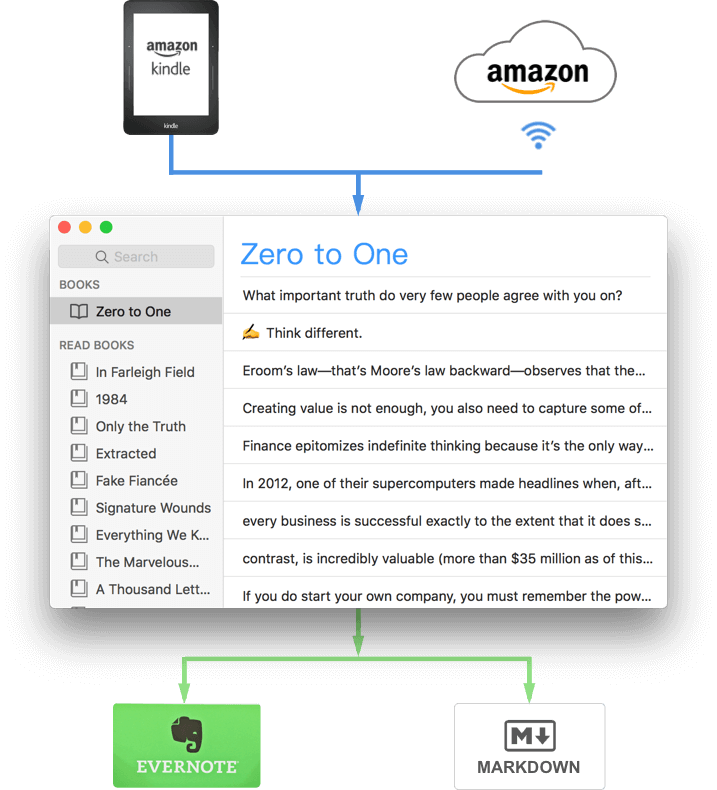
<li>Import highlights from Kindle, Apple Books or Amazon.</li>
<li>Review highlights in Kindle for macOS.</li>
<li>Copy highlights in <strong>Markdown</strong> format.</li>
<li>Export Kindle highlights to <strong>Evernote</strong>.</li>
</ul>
<p><strong><a href="/Klib/">Learn more about Klib</a></strong></p>
<hr>
]]></content>
    
    <summary type="html">
    
      &lt;p&gt;&lt;a href=&quot;https://itunes.apple.com/app/id1196268448?ls=1&amp;mt=12&amp;at=1000lv4R&amp;ct=klib_home&quot; target=&quot;_blank&quot;&gt;&lt;img src=&quot;https://p.nuli.life/blo
    
    </summary>
    
      <category term="Klib" scheme="https://en.toolinbox.net/categories/Klib/"/>
    
    
  </entry>
  
  <entry>
    <title>iText - OCR Tool</title>
    <link href="https://en.toolinbox.net/iText/iText.html"/>
    <id>https://en.toolinbox.net/iText/iText.html</id>
    <published>2022-12-31T01:00:00.000Z</published>
    <updated>2022-12-17T09:04:50.730Z</updated>
    
    <content type="html"><![CDATA[<p><a href="https://itunes.apple.com/app/id1314980676?ls=1&mt=12&at=1000lv4R&ct=iText_me" target="_blank"><img src="https://p.nuli.life/blog/b8ssq.jpg" width="200"></a></p>
<p><strong>iText</strong> is an OCR tool which could <strong>recognize text from any image</strong>. You just need to capture screen or select image file, <strong>Google</strong> will extract the text inside. The recognition result is amazingly accurate, even up to 100%.</p>
<p><strong><a href="/iText/">Learn more about iText</a></strong></p>
<hr>
]]></content>
    
    <summary type="html">
    
      &lt;p&gt;&lt;a href=&quot;https://itunes.apple.com/app/id1314980676?ls=1&amp;mt=12&amp;at=1000lv4R&amp;ct=iText_me&quot; target=&quot;_blank&quot;&gt;&lt;img src=&quot;https://p.nuli.life/blog
    
    </summary>
    
      <category term="iText" scheme="https://en.toolinbox.net/categories/iText/"/>
    
    
  </entry>
  
  <entry>
    <title>iPic - Image &amp; File Upload Tool</title>
    <link href="https://en.toolinbox.net/iPic/iPic.html"/>
    <id>https://en.toolinbox.net/iPic/iPic.html</id>
    <published>2022-12-31T00:00:00.000Z</published>
    <updated>2022-12-17T09:05:47.430Z</updated>
    
    <content type="html"><![CDATA[<p><a href="https://itunes.apple.com/app/id1101244278?ls=1&mt=12&at=1000lv4R&ct=iPic_home" target="_blank"><img src="https://p.nuli.life/blog/4wzgs.jpg" width="200"></a></p>
<p><strong>iPic</strong> could automatically upload images &amp; files, and then save <strong>Markdown</strong> links on macOS. Support <strong>Imgur, Flickr, Amazon S3</strong> and other cloud storage. Could compress images before upload.</p>
<p><strong><a href="/iPic/">Learn more about iPic</a></strong></p>
<hr>
]]></content>
    
    <summary type="html">
    
      &lt;p&gt;&lt;a href=&quot;https://itunes.apple.com/app/id1101244278?ls=1&amp;mt=12&amp;at=1000lv4R&amp;ct=iPic_home&quot; target=&quot;_blank&quot;&gt;&lt;img src=&quot;https://p.nuli.life/blo
    
    </summary>
    
      <category term="iPic" scheme="https://en.toolinbox.net/categories/iPic/"/>
    
    
  </entry>
  
  <entry>
    <title>iPaste - Lightweight and Efficient Clipboard Tool</title>
    <link href="https://en.toolinbox.net/iPaste/iPaste.html"/>
    <id>https://en.toolinbox.net/iPaste/iPaste.html</id>
    <published>2022-12-30T23:00:00.000Z</published>
    <updated>2022-12-17T09:05:35.058Z</updated>
    
    <content type="html"><![CDATA[<p><a href="https://itunes.apple.com/app/id1056935452?ls=1&mt=12&at=1000lv4R&ct=iPaste_home" target="_blank"><img src="https://p.nuli.life/blog/daqqf.jpg" width="200"></a></p>
<p><strong>iPaste</strong> is a lightweight and efficient pasteboard tool on iOS and macOS. Support text, image, file and any other formats. Could pin the history. Support multiple shortcuts.</p>
<p><strong><a href="/iPaste/">Learn more about iPaste</a></strong></p>
<hr>
]]></content>
    
    <summary type="html">
    
      &lt;p&gt;&lt;a href=&quot;https://itunes.apple.com/app/id1056935452?ls=1&amp;mt=12&amp;at=1000lv4R&amp;ct=iPaste_home&quot; target=&quot;_blank&quot;&gt;&lt;img src=&quot;https://p.nuli.life/b
    
    </summary>
    
      <category term="iPaste" scheme="https://en.toolinbox.net/categories/iPaste/"/>
    
    
  </entry>
  
  <entry>
    <title>iTimer - Pomodoro Timer</title>
    <link href="https://en.toolinbox.net/iTimer/iTimer.html"/>
    <id>https://en.toolinbox.net/iTimer/iTimer.html</id>
    <published>2022-12-30T22:00:00.000Z</published>
    <updated>2022-12-17T09:06:18.406Z</updated>
    
    <content type="html"><![CDATA[<p><a href="https://itunes.apple.com/app/id1062139745?ls=1&mt=12&at=1000lv4R&ct=iTimer_home" target="_blank"><img src="https://p.nuli.life/blog/y298a.jpg" width="200"></a></p>
<p><strong>iTimer</strong> could help you to focus on now. Use pie to show the remaining time. Could quickly start timer or restart. You can use it as Pomodoro timer.</p>
<p><strong><a href="/iTimer/">Learn more about iTimer</a></strong></p>
]]></content>
    
    <summary type="html">
    
      &lt;p&gt;&lt;a href=&quot;https://itunes.apple.com/app/id1062139745?ls=1&amp;mt=12&amp;at=1000lv4R&amp;ct=iTimer_home&quot; target=&quot;_blank&quot;&gt;&lt;img src=&quot;https://p.nuli.life/b
    
    </summary>
    
      <category term="iTimer" scheme="https://en.toolinbox.net/categories/iTimer/"/>
    
    
  </entry>
  
  <entry>
    <title>iHosts - /etc/hosts Editor</title>
    <link href="https://en.toolinbox.net/iHosts/iHosts.html"/>
    <id>https://en.toolinbox.net/iHosts/iHosts.html</id>
    <published>2022-12-30T21:00:00.000Z</published>
    <updated>2022-12-17T09:05:23.061Z</updated>
    
    <content type="html"><![CDATA[<p><a href="https://itunes.apple.com/app/id1102004240?ls=1&mt=12&at=1000lv4R&ct=iHosts_home" target="_blank"><img src="https://p.nuli.life/blog/1pe3z.jpg" width="200"></a></p>
<p><strong>iHosts</strong> is the <strong>only</strong> /etc/hosts editor on Mac App Store. Organize hosts by groups, switch by one click. View hosts in real time.</p>
<p><strong><a href="/iHosts/">Learn more about iHosts</a></strong></p>
<hr>
]]></content>
    
    <summary type="html">
    
      &lt;p&gt;&lt;a href=&quot;https://itunes.apple.com/app/id1102004240?ls=1&amp;mt=12&amp;at=1000lv4R&amp;ct=iHosts_home&quot; target=&quot;_blank&quot;&gt;&lt;img src=&quot;https://p.nuli.life/b
    
    </summary>
    
      <category term="iHosts" scheme="https://en.toolinbox.net/categories/iHosts/"/>
    
    
  </entry>
  
  <entry>
    <title>Add Backblaze B2 in iPic</title>
    <link href="https://en.toolinbox.net/iPic/AddB2.html"/>
    <id>https://en.toolinbox.net/iPic/AddB2.html</id>
    <published>2022-12-12T00:00:00.000Z</published>
    <updated>2022-12-19T04:26:03.178Z</updated>
    
    <content type="html"><![CDATA[<p>Backblaze B2 is almost the cheapest online storage now. For more introductions, please refer to <a href="https://www.backblaze.com/b2/cloud-storage.html" target="_blank" rel="external">Backblaze B2’s official site.</a></p>
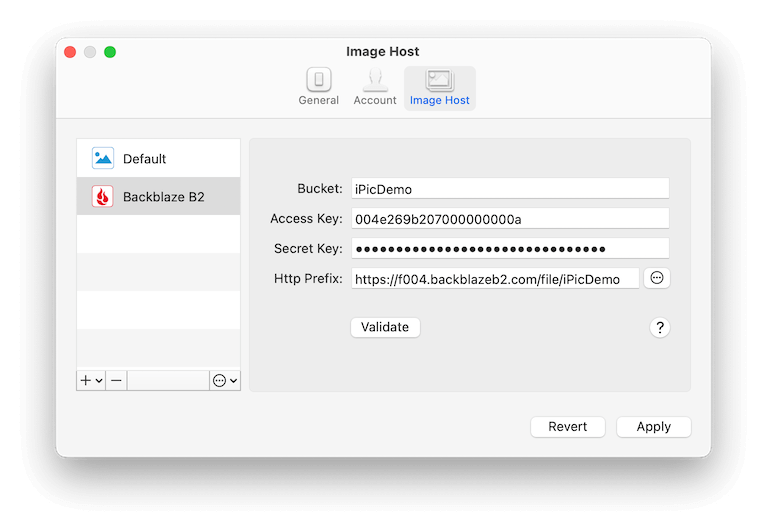
<h1 id="Add-Backblaze-B2-in-iPic"><a href="#Add-Backblaze-B2-in-iPic" class="headerlink" title="Add Backblaze B2 in iPic"></a>Add Backblaze B2 in iPic</h1><p>Open iPic’s <code>Preferences</code>, clicks <code>Image Host</code>, and add <code>Backblaze B2</code>.</p>
<p><img src="https://p.nuli.life/blog/qsj8w.png" alt=""></p>
<p>Here is the introductions for all parts:</p>
<ul>
<li><code>Bucket</code><ul>
<li>Same with the bucket in Backblaze B2</li>
<li><ul>
<li>注意：添加 <code>Bucket</code> 时，权限需要选择 <code>Public</code>，不然别人无法访问，则无法作为图床使用。</li>
</ul>
</li>
<li>Note: when create <code>Bucket</code>, should set the <code>File in Bucket</code> as <code>Public</code>, otherwise users can’t access the image in <code>Bucket</code> via url.</li>
</ul>
</li>
<li><code>Access Key</code> and <code>Secret Key</code><ul>
<li>They’re the <code>keyID</code> and <code>applicationKey</code> of Backblaze B2 Application Key. Refer to <a href="https://secure.backblaze.com/app_keys.htm" target="_blank" rel="external">Backblaze B2’s Application Keys</a>.</li>
<li>Note: When create the App Key, should include the <code>Write</code> permission at least.</li>
</ul>
</li>
<li><code>Http Prefix</code><ul>
<li>The endpoint for Backblaze B2 bucket, e.g., <em><a href="https://f004.backblazeb2.com/file/iPicDemo" target="_blank" rel="external">https://f004.backblazeb2.com/file/iPicDemo</a></em></li>
</ul>
</li>
</ul>
<p>After fill all the parts, clicks the <strong>Validate</strong> button. If all the information above is correct, you can see the link of <strong>Passed</strong> in the right.</p>
<a id="more"></a>
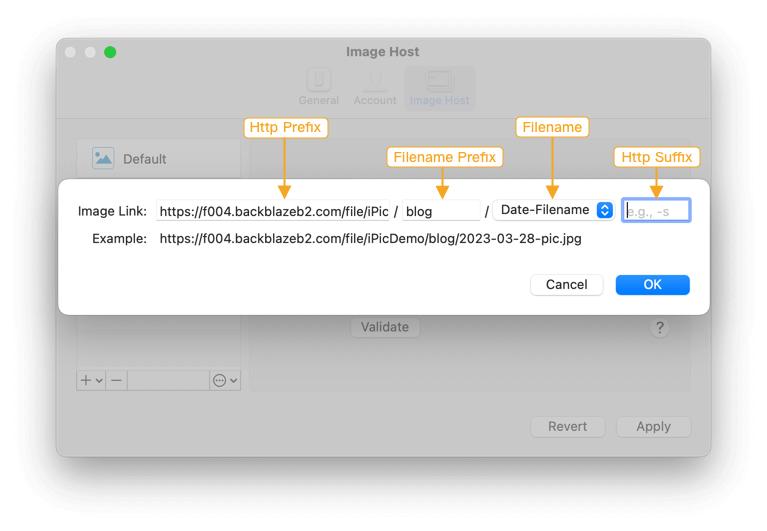
<p>Beside the basic configuration above, Backblaze B2 also supports several advanced ones. Click the ‘Advanced’ button in right of <code>Http Prefix</code>, you can see the following setting page.</p>
<p><img src="https://p.nuli.life/blog/aqh0l.png" alt=""></p>
<ul>
<li><code>Http Prefix</code><ul>
<li>Same with what ever introduced.</li>
</ul>
</li>
<li><code>Filename Prefix</code><ul>
<li>Could understand as the folder in Backblaze B2</li>
<li>For example, if you want iPic upload all images in <code>blog</code> folder, just input <code>blog</code> here. The image link will like <em><a href="https://f004.backblazeb2.com/file/iPicDemo/blog/pic.jpg" target="_blank" rel="external">https://f004.backblazeb2.com/file/iPicDemo/blog/pic.jpg</a></em></li>
<li>Note: If you enable <code>File name prefix</code> when create App Key, the <code>Filename Prefix</code> key should includes the <code>File name prefix</code> at least.</li>
</ul>
</li>
<li><code>Filename</code><ul>
<li>The filename saved in Backblaze B2. Now iPic supports these 3 kinds of filename.</li>
<li><code>Only Filename</code> e.g.,  <code>pic.jpg</code></li>
<li><code>Date-Filename</code> e.g., <code>2023-06-16-pic.jpg</code></li>
<li><code>Random</code> e.g., <code>jk8l1.jpg</code>, could help to shorten the link.</li>
</ul>
</li>
<li><code>Http Suffix</code><ul>
<li>Any characters in the end of the link.</li>
</ul>
</li>
</ul>
<p>After all, clicks <strong>Apply</strong> to save.</p>
]]></content>
    
    <summary type="html">
    
      &lt;p&gt;Backblaze B2 is almost the cheapest online storage now. For more introductions, please refer to &lt;a href=&quot;https://www.backblaze.com/b2/cloud-storage.html&quot;&gt;Backblaze B2’s official site.&lt;/a&gt;&lt;/p&gt;
&lt;h1 id=&quot;Add-Backblaze-B2-in-iPic&quot;&gt;&lt;a href=&quot;#Add-Backblaze-B2-in-iPic&quot; class=&quot;headerlink&quot; title=&quot;Add Backblaze B2 in iPic&quot;&gt;&lt;/a&gt;Add Backblaze B2 in iPic&lt;/h1&gt;&lt;p&gt;Open iPic’s &lt;code&gt;Preferences&lt;/code&gt;, clicks &lt;code&gt;Image Host&lt;/code&gt;, and add &lt;code&gt;Backblaze B2&lt;/code&gt;.&lt;/p&gt;
&lt;p&gt;&lt;img src=&quot;https://p.nuli.life/blog/qsj8w.png&quot; alt=&quot;&quot;&gt;&lt;/p&gt;
&lt;p&gt;Here is the introductions for all parts:&lt;/p&gt;
&lt;ul&gt;
&lt;li&gt;&lt;code&gt;Bucket&lt;/code&gt;&lt;ul&gt;
&lt;li&gt;Same with the bucket in Backblaze B2&lt;/li&gt;
&lt;li&gt;&lt;ul&gt;
&lt;li&gt;注意：添加 &lt;code&gt;Bucket&lt;/code&gt; 时，权限需要选择 &lt;code&gt;Public&lt;/code&gt;，不然别人无法访问，则无法作为图床使用。&lt;/li&gt;
&lt;/ul&gt;
&lt;/li&gt;
&lt;li&gt;Note: when create &lt;code&gt;Bucket&lt;/code&gt;, should set the &lt;code&gt;File in Bucket&lt;/code&gt; as &lt;code&gt;Public&lt;/code&gt;, otherwise users can’t access the image in &lt;code&gt;Bucket&lt;/code&gt; via url.&lt;/li&gt;
&lt;/ul&gt;
&lt;/li&gt;
&lt;li&gt;&lt;code&gt;Access Key&lt;/code&gt; and &lt;code&gt;Secret Key&lt;/code&gt;&lt;ul&gt;
&lt;li&gt;They’re the &lt;code&gt;keyID&lt;/code&gt; and &lt;code&gt;applicationKey&lt;/code&gt; of Backblaze B2 Application Key. Refer to &lt;a href=&quot;https://secure.backblaze.com/app_keys.htm&quot;&gt;Backblaze B2’s Application Keys&lt;/a&gt;.&lt;/li&gt;
&lt;li&gt;Note: When create the App Key, should include the &lt;code&gt;Write&lt;/code&gt; permission at least.&lt;/li&gt;
&lt;/ul&gt;
&lt;/li&gt;
&lt;li&gt;&lt;code&gt;Http Prefix&lt;/code&gt;&lt;ul&gt;
&lt;li&gt;The endpoint for Backblaze B2 bucket, e.g., &lt;em&gt;&lt;a href=&quot;https://f004.backblazeb2.com/file/iPicDemo&quot;&gt;https://f004.backblazeb2.com/file/iPicDemo&lt;/a&gt;&lt;/em&gt;&lt;/li&gt;
&lt;/ul&gt;
&lt;/li&gt;
&lt;/ul&gt;
&lt;p&gt;After fill all the parts, clicks the &lt;strong&gt;Validate&lt;/strong&gt; button. If all the information above is correct, you can see the link of &lt;strong&gt;Passed&lt;/strong&gt; in the right.&lt;/p&gt;
    
    </summary>
    
      <category term="iPic" scheme="https://en.toolinbox.net/categories/iPic/"/>
    
    
  </entry>
  
  <entry>
    <title>iText works with macOS Catalina</title>
    <link href="https://en.toolinbox.net/iText/macOS_Catalina.html"/>
    <id>https://en.toolinbox.net/iText/macOS_Catalina.html</id>
    <published>2019-04-06T02:00:00.000Z</published>
    <updated>2022-12-17T09:02:44.212Z</updated>
    
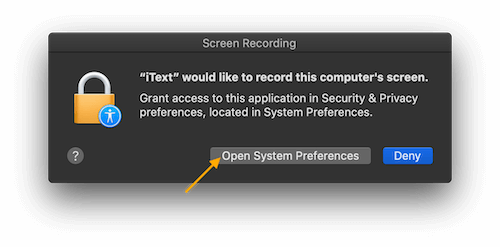
    <content type="html"><![CDATA[<p>macOS Catalina (10.15) adjusted the privacy &amp; permissions. In this case, need to enable “Screen Recording” permission for iText to let it capture screen to recognize the text in it.</p>
<p>Specifically, when using iText to capture screen for the first time in macOS Catalina, the following dialog will pop up:</p>
<p><img src="https://p.nuli.life/blog/pucr9.png" alt=""></p>
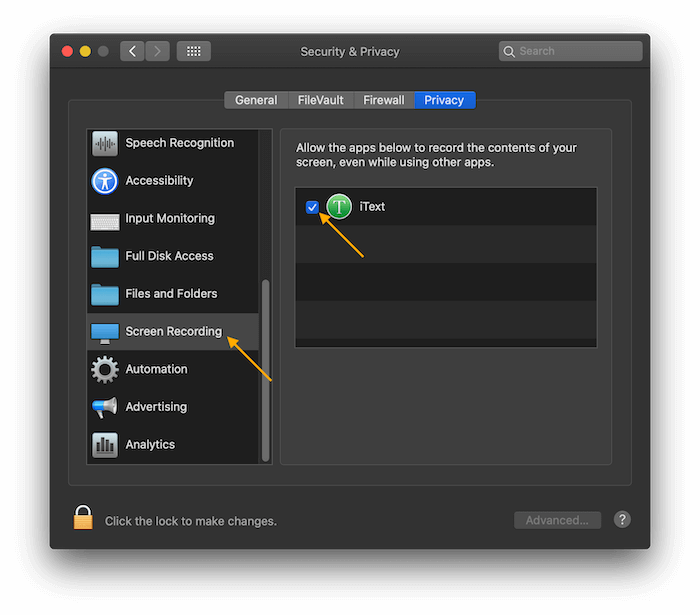
<p>At this point, you can click “Open System Preferences”. If you ever clicked “Deny”, you can manually open the “System Preferences” app, select “Security &amp; Privacy”, and then in the “Privacy” column, select “Screen Recording” on the left.</p>
<p><img src="https://p.nuli.life/blog/031e9.png" alt=""></p>
<p>In this page, enable iText. After restart iText, it will work correctly.</p>
]]></content>
    
    <summary type="html">
    
      &lt;p&gt;macOS Catalina (10.15) adjusted the privacy &amp;amp; permissions. In this case, need to enable “Screen Recording” permission for iText to le
    
    </summary>
    
      <category term="iText" scheme="https://en.toolinbox.net/categories/iText/"/>
    
    
  </entry>
  
  <entry>
    <title>How to Activate the License</title>
    <link href="https://en.toolinbox.net/help/license.html"/>
    <id>https://en.toolinbox.net/help/license.html</id>
    <published>2019-04-04T22:00:00.000Z</published>
    <updated>2022-12-17T09:04:29.341Z</updated>
    
    <content type="html"><![CDATA[<p><img src="https://p.nuli.life/blog/92iql.jpg" width="400"></p>
<p>Take <code>iText</code> as an example, open <code>iText&#39;s menu</code>&gt; <code>More</code>&gt; <code>Preferences</code>, click <code>Account</code>&gt; <code>License</code>, enter the license and click <code>Activate</code>.</p>
<p><img src="https://p.nuli.life/blog/24f7u.jpg" width="400"></p>
<p>Take <code>Klib</code> as an example, open <code>Klib&#39;s menu</code>&gt; <code>Klib</code>&gt; <code>Preferences</code>, click <code>Account</code>&gt; <code>License</code>, enter the license and click <code>Activate</code>.</p>
]]></content>
    
    <summary type="html">
    
      &lt;p&gt;&lt;img src=&quot;https://p.nuli.life/blog/92iql.jpg&quot; width=&quot;400&quot;&gt;&lt;/p&gt;
&lt;p&gt;Take &lt;code&gt;iText&lt;/code&gt; as an example, open &lt;code&gt;iText&amp;#39;s menu&lt;/cod
    
    </summary>
    
      <category term="Help" scheme="https://en.toolinbox.net/categories/Help/"/>
    
    
  </entry>
  
  <entry>
    <title>How to let iPaste work on macOS Mojave 10.14</title>
    <link href="https://en.toolinbox.net/iPaste/iPaste_macOS_Mojave.html"/>
    <id>https://en.toolinbox.net/iPaste/iPaste_macOS_Mojave.html</id>
    <published>2017-10-27T23:00:00.000Z</published>
    <updated>2022-12-17T09:02:44.211Z</updated>
    
    <content type="html"><![CDATA[<h2 id="Background"><a href="#Background" class="headerlink" title="Background"></a>Background</h2><p>Recently, after upgrading to macOS Mojave 10.14, some users may have problems clicking the iPaste history but not being able to paste it into the target program. Why and how to solve it?</p>
<p>Since iPaste is a sandboxed app, you cannot directly paste the clipboard history into the target app. Therefore, iPaste uses the system <code>Script</code> script to simulate the <code>⌘V</code> shortcut to auto-paste.</p>
<p>It worked fine before, but macOS Mojave 10.14 imposes stricter restrictions on scripts, making the current strategy likely to fail. How to solve it? Please see the next introduction.</p>
<h2 id="How-to-use-iPaste-on-macOS-Mojave"><a href="#How-to-use-iPaste-on-macOS-Mojave" class="headerlink" title="How to use iPaste on macOS Mojave"></a>How to use iPaste on macOS Mojave</h2><p>１. Try pasting in iPaste and save the script as prompted.</p>
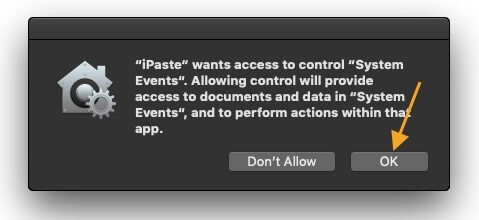
<p>２. Try pasting again in iPaste, where iPaste will try to call the script. The macOS system will have the following prompts:</p>
<p><img src="https://p.nuli.life/blog/am68l.jpg" alt=""></p>
<p>That is, macOS will let you confirm if iPaste is allowed to call the script. Naturally, you need to click <code>OK</code> to confirm.</p>
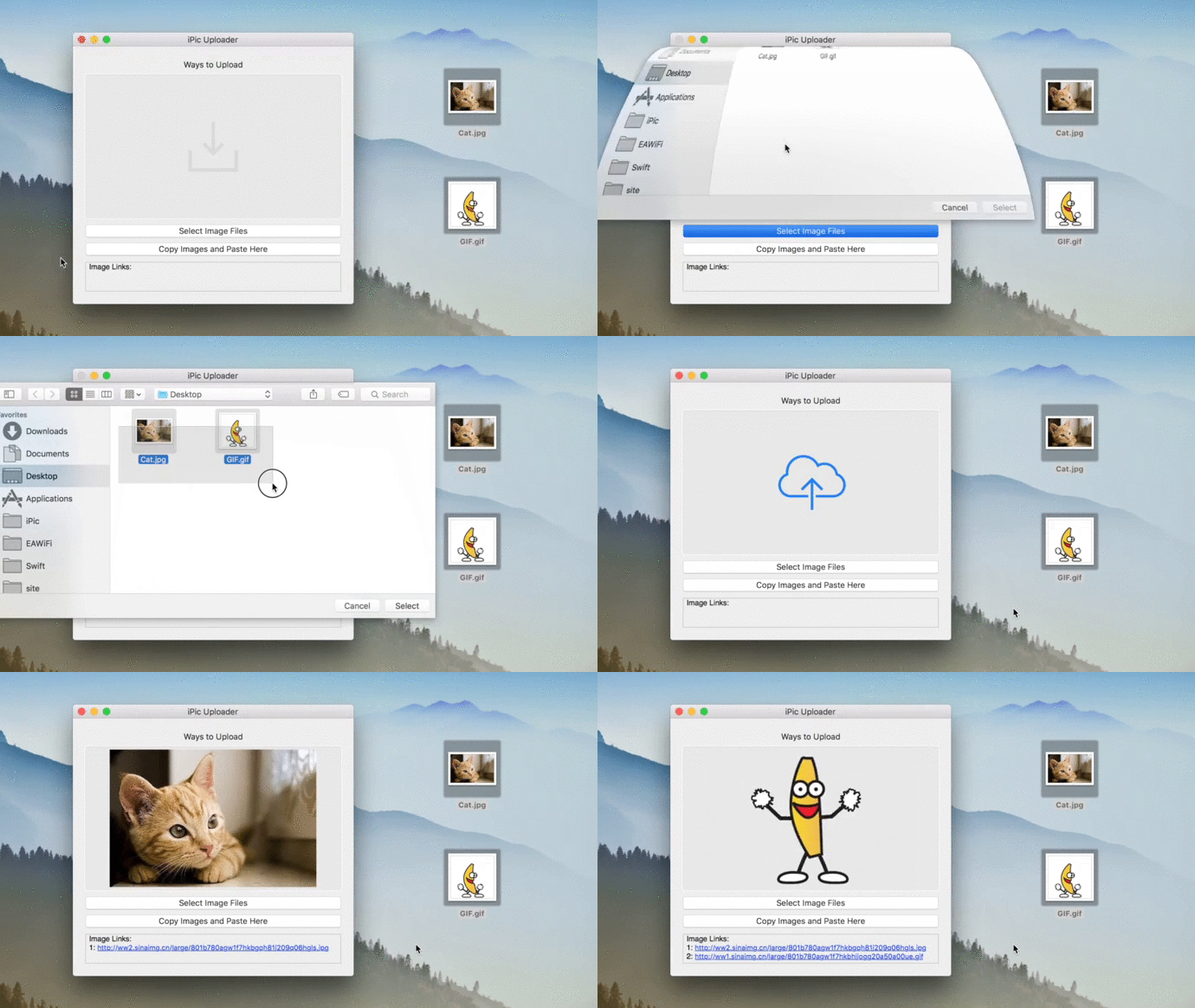
<p>If you have previously disabled it, you need to open the system preferences <code>System Preferences.app</code>:</p>
<p><img src="https://p.nuli.life/blog/js550.gif" alt=""></p>
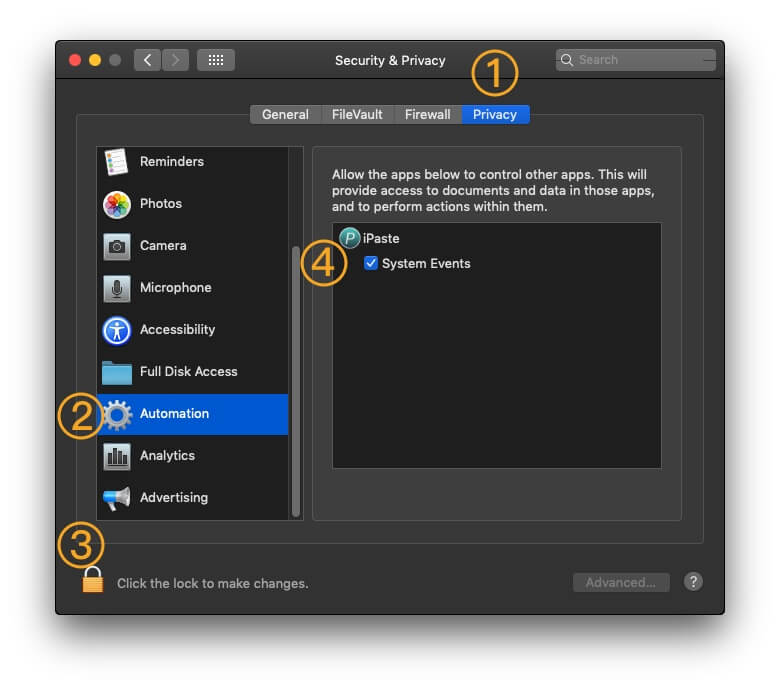
<p>Then click <code>Security &amp; Privacy</code>, <code>Privacy</code>, <code>Automation</code>, click the lock in the lower left corner, enter the password and unlock. Then select <code>System Events</code> under iPaste:</p>
<p><img src="https://p.nuli.life/blog/u38jh.jpg" alt=""></p>
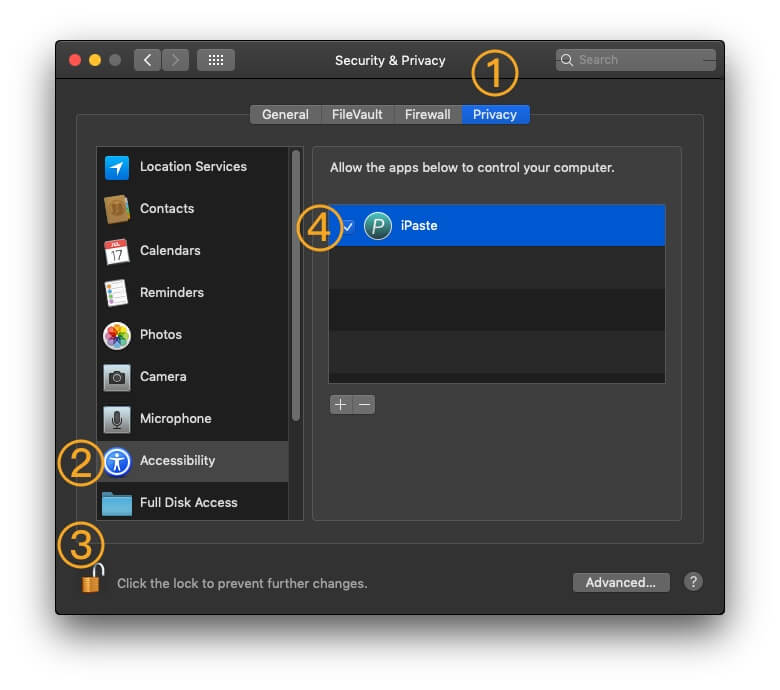
<p>３. Continue to try pasting, where iPaste will call the script and try to send the <code>⌘V</code> shortcut. The macOS system will have the following prompts:</p>
<p><img src="https://p.nuli.life/blog/y955b.jpg" alt=""></p>
<p>That is, macOS will let you confirm if iPaste is allowed to send the <code>⌘V</code> shortcut. Click on <code>Open System Preferences</code> (if you click Deny, you can open <code>System Preferences.app</code> manually), then click on ‘Security &amp; Privacy<code>, then</code>Privacy<code>, then</code>Accessibility`, click on the lock in the lower left corner and enter the password. After unlocking. Then select iPaste on the right:</p>
<p><img src="https://p.nuli.life/blog/34j7v.jpg" alt=""></p>
<p>４. Try to paste again in iPaste, it should be fine; you’re done.</p>
<p>Once the setup is complete, you don’t need to set it up again. As always, please continue to be efficient.</p>
]]></content>
    
    <summary type="html">
    
      &lt;h2 id=&quot;Background&quot;&gt;&lt;a href=&quot;#Background&quot; class=&quot;headerlink&quot; title=&quot;Background&quot;&gt;&lt;/a&gt;Background&lt;/h2&gt;&lt;p&gt;Recently, after upgrading to macOS Moj
    
    </summary>
    
      <category term="iPaste" scheme="https://en.toolinbox.net/categories/iPaste/"/>
    
    
  </entry>
  
  <entry>
    <title>Why Klib is an essential tool for Kindle users?</title>
    <link href="https://en.toolinbox.net/Klib/Introduction.html"/>
    <id>https://en.toolinbox.net/Klib/Introduction.html</id>
    <published>2017-03-31T00:08:08.000Z</published>
    <updated>2022-12-17T09:02:44.216Z</updated>
    
    <content type="html"><![CDATA[<p><a href="http://klib.me" target="_blank" rel="external">Klib</a> is a new way to manage Kindle highlights and notes. Let me tell you the story behind it.</p>
<h1 id="Why-did-I-bring-Klib-to-this-world"><a href="#Why-did-I-bring-Klib-to-this-world" class="headerlink" title="Why did I bring Klib to this world?"></a>Why did I bring Klib to this world?</h1><p>I’m a Kindler, love to read on the Kindle. It has many benefits, but also some inconveniences, e.g. hard to export or organize the highlights, etc.</p>
<p><img src="https://p.nuli.life/blog/vrzqa.png" alt=""></p>
<p>In another side, I’m an <a href="https://itunes.apple.com/us/developer/id1056935451" target="_blank" rel="external">independent macOS developer</a>. I want to develop an App to solve my problem, and also help other Kindle users. This is why I made Klib.</p>
<a id="more"></a>
<h1 id="How-can-Klib-help-Kindle-users"><a href="#How-can-Klib-help-Kindle-users" class="headerlink" title="How can Klib help Kindle users?"></a>How can Klib help Kindle users?</h1><p>Let me show you how Klib works and why it’s useful.</p>
<h2 id="Safely-save-highlights"><a href="#Safely-save-highlights" class="headerlink" title="Safely save highlights"></a>Safely save highlights</h2><p>Yes, it’s easy to take highlights on the Kindle. But in fact I didn’t feel free to do it. Why? as I know <strong>I’m likely NOT to review the highlights again, which is in fact inconvenient to do</strong>. And I’m also afraid the highlights will be lost after I deleted the books from my Kindle.</p>
<p>Good news is, now <strong>Klib could easily import highlights &amp; notes from Kindle via USB, or wirelessly import from Amazon</strong>. This guarantees that the highlights I take will be safely saved in my computer, <strong>which obviously encourages me to take more highlights</strong>.</p>
<p><img src="https://p.nuli.life/blog/qnexx.png" alt=""></p>
<h2 id="Easily-export-highlights"><a href="#Easily-export-highlights" class="headerlink" title="Easily export highlights"></a>Easily export highlights</h2><p>After reading a book I have a habit to summarize it in my blog. And the highlights and notes are important parts of the summary. So, I added the feature that <strong>Klib copy the highlights as Markdown</strong>. This saved me much time as I don’t need to copy and paste the highlights one by one any more.</p>
<p>Sometimes I want to review the highlights when my Kindle or Mac isn’t nearby. How to deal with it? I let <strong>Klib support exporting highlights to Evernote</strong>, thus I can view them via Evernote’s App for iPhone anytime, anywhere.</p>
<h2 id="Review-highlights-in-Kindle-for-macOS"><a href="#Review-highlights-in-Kindle-for-macOS" class="headerlink" title="Review highlights in Kindle for macOS"></a>Review highlights in Kindle for macOS</h2><p>When I review highlights, sometimes I want to read that part of the book again, as the highlights are usually too brief. For this reason, I add the feature that <strong>Klib can open Kindle for macOS and jump to the exact location</strong>. Very cool and useful.</p>
<p><img src="https://p.nuli.life/blog/y9omy.gif" alt=""></p>
<p><strong>Klib should be the world’s first App which could do so.</strong></p>
<h2 id="Klib’s-other-great-features"><a href="#Klib’s-other-great-features" class="headerlink" title="Klib’s other great features"></a>Klib’s other great features</h2><ul>
<li>Hide Read Books<ul>
<li>Help you to focus on now.</li>
</ul>
</li>
<li>Quick Look Notes<ul>
<li>Another way to review notes in Klib.</li>
</ul>
</li>
<li>Free to Edit, Instantly Search<ul>
<li>For the highlights, book title, author, etc.</li>
</ul>
</li>
<li>Export Entire Database<ul>
<li>You can also export selected books.</li>
</ul>
</li>
</ul>
<p><a href="https://en.toolinbox.net/Klib/">Learn More</a></p>
<p>In the same time, Klib will keep on improving, e.g. some planned improvements are:</p>
<ul>
<li>Organizing books using tags.</li>
<li>Supporting manually added books and notes.</li>
<li>Improving the experience for reviewing notes.</li>
<li>…</li>
</ul>
<h1 id="Why-not-try-Klib-for-Free"><a href="#Why-not-try-Klib-for-Free" class="headerlink" title="Why not try Klib for Free?"></a>Why not try Klib for Free?</h1><p><a href="https://p.nuli.life/blog/1seaf.jpg" target="_blank" rel="external"><img src="https://p.nuli.life/blog/vublc.jpg" alt="Mac App Store"></a></p>
<p>Klib’s free account could manage 20 books. You can upgrade to Klib Pro to manage unlimited books or subscribe “Klib Extensions” to import from Amazon.</p>
<p>Now new version of Klib has been submitted to Mac App Store and is in review. In another side you can try <a href="http://klib.me/d" target="_blank" rel="external">Klib’s preview version</a> ahead.</p>
<p>Welcome to introduce Klib to any book lovers you know. You will help them to get more out of reading. Here is the <a href="https://s.toolinbox.net/Klib/PressKit.zip" target="_blank" rel="external">Press Kit</a> FYI.</p>
<h2 id="Contact-Me"><a href="#Contact-Me" class="headerlink" title="Contact Me"></a>Contact Me</h2><p>Please send any suggestions you may have, I will give them seriously consideration.</p>
<ul>
<li><a href="mailto:iToolinbox@gmail.com" target="_blank" rel="external">Email me</a></li>
<li><a href="https://toolinbox.net/html/feedback.html?lang=en&amp;app=Klib" target="_blank" rel="external">Leave me a message</a></li>
<li><a href="https://t.me/iToolinbox" target="_blank" rel="external">Join Telegram group</a></li>
</ul>
<p>I look forward to hearing from you!</p>
<p><img src="https://p.nuli.life/blog/r4a3p.png" alt=""></p>
]]></content>
    
    <summary type="html">
    
      &lt;p&gt;&lt;a href=&quot;http://klib.me&quot;&gt;Klib&lt;/a&gt; is a new way to manage Kindle highlights and notes. Let me tell you the story behind it.&lt;/p&gt;
&lt;h1 id=&quot;Why-did-I-bring-Klib-to-this-world&quot;&gt;&lt;a href=&quot;#Why-did-I-bring-Klib-to-this-world&quot; class=&quot;headerlink&quot; title=&quot;Why did I bring Klib to this world?&quot;&gt;&lt;/a&gt;Why did I bring Klib to this world?&lt;/h1&gt;&lt;p&gt;I’m a Kindler, love to read on the Kindle. It has many benefits, but also some inconveniences, e.g. hard to export or organize the highlights, etc.&lt;/p&gt;
&lt;p&gt;&lt;img src=&quot;https://p.nuli.life/blog/vrzqa.png&quot; alt=&quot;&quot;&gt;&lt;/p&gt;
&lt;p&gt;In another side, I’m an &lt;a href=&quot;https://itunes.apple.com/us/developer/id1056935451&quot;&gt;independent macOS developer&lt;/a&gt;. I want to develop an App to solve my problem, and also help other Kindle users. This is why I made Klib.&lt;/p&gt;
    
    </summary>
    
      <category term="Klib" scheme="https://en.toolinbox.net/categories/Klib/"/>
    
    
  </entry>
  
  <entry>
    <title>Klib Was Successfully Released Mac App Store</title>
    <link href="https://en.toolinbox.net/Klib/KlibMAS.html"/>
    <id>https://en.toolinbox.net/Klib/KlibMAS.html</id>
    <published>2017-03-06T00:08:08.000Z</published>
    <updated>2022-12-17T09:02:44.215Z</updated>
    
    <content type="html"><![CDATA[<p><img src="https://p.nuli.life/blog/vc3h6.png" alt=""></p>
<p><strong>Klib</strong> (<strong>K</strong>indle <strong>lib</strong>rary) is a new way to manage Kindle highlights and notes. <a href="https://en.toolinbox.net/Klib/">Learn more.</a></p>
<p>After reviewed and modified for several times, <strong>Klib</strong> was finally released on Mac App Store, and <strong>becomes the first and only Kindle highlights and notes manager on Mac App Store</strong>. Congratulations!</p>
<p><a href="https://itunes.apple.com/app/id1196268448?ls=1&amp;mt=12&amp;at=1000lv4R&amp;ct=klib_home" target="_blank" rel="external"><img src="https://p.nuli.life/blog/3vr81.jpg" alt=""></a></p>
<a id="more"></a>
<p>If you met problem or want Klib to be improved follow your ways, please feel free to contact me.</p>
<ul>
<li><a href="https://toolinbox.net/html/feedback.html?lang=en&amp;app=Klib" target="_blank" rel="external">Leave me a message</a></li>
<li><a href="https://t.me/iToolinbox" target="_blank" rel="external">Join Telegram group</a></li>
</ul>
<p>Look forward to your message.</p>
]]></content>
    
    <summary type="html">
    
      &lt;p&gt;&lt;img src=&quot;https://p.nuli.life/blog/vc3h6.png&quot; alt=&quot;&quot;&gt;&lt;/p&gt;
&lt;p&gt;&lt;strong&gt;Klib&lt;/strong&gt; (&lt;strong&gt;K&lt;/strong&gt;indle &lt;strong&gt;lib&lt;/strong&gt;rary) is a new way to manage Kindle highlights and notes. &lt;a href=&quot;https://en.toolinbox.net/Klib/&quot;&gt;Learn more.&lt;/a&gt;&lt;/p&gt;
&lt;p&gt;After reviewed and modified for several times, &lt;strong&gt;Klib&lt;/strong&gt; was finally released on Mac App Store, and &lt;strong&gt;becomes the first and only Kindle highlights and notes manager on Mac App Store&lt;/strong&gt;. Congratulations!&lt;/p&gt;
&lt;p&gt;&lt;a href=&quot;https://itunes.apple.com/app/id1196268448?ls=1&amp;amp;mt=12&amp;amp;at=1000lv4R&amp;amp;ct=klib_home&quot;&gt;&lt;img src=&quot;https://p.nuli.life/blog/3vr81.jpg&quot; alt=&quot;&quot;&gt;&lt;/a&gt;&lt;/p&gt;
    
    </summary>
    
      <category term="Klib" scheme="https://en.toolinbox.net/categories/Klib/"/>
    
    
  </entry>
  
  <entry>
    <title>iPic Mover</title>
    <link href="https://en.toolinbox.net/iPic/iPicMover.html"/>
    <id>https://en.toolinbox.net/iPic/iPicMover.html</id>
    <published>2016-12-04T15:24:32.000Z</published>
    <updated>2022-12-17T09:02:44.205Z</updated>
    
    <content type="html"><![CDATA[<p><img src="https://p.nuli.life/blog/x4xw3.png" alt=""></p>
<h1 id="What’s-iPic-Mover-Do-I-Need-it"><a href="#What’s-iPic-Mover-Do-I-Need-it" class="headerlink" title="What’s iPic Mover? Do I Need it?"></a>What’s iPic Mover? Do I Need it?</h1><p>Did you ever meet these troubles?</p>
<p>１. <strong>Upload images to cloud, and then update link in Markdown</strong></p>
<ul>
<li>Most Markdown editors don’t support upload images to cloud.</li>
</ul>
<p>２. <strong>Change image host</strong></p>
<ul>
<li>E.g., if you want to let your site support https, possibly you need to move images to new image host which supports https.</li>
</ul>
<p>３. <strong>Transfer images when change WordPress to Markdown</strong></p>
<ul>
<li>WordPress was very popular, even popular now. But it’s a big trouble to transfer the images in WordPress as attachment.</li>
<li>This feature is under development…</li>
</ul>
<p>４. <strong>Compress existing images</strong></p>
<ul>
<li>You may ever uploaded very big images. But it’s very difficult to find all these images in articles, compress, upload to cloud, and then update the links.</li>
<li>This feature is under development…</li>
</ul>
<p>In another side, iPic Mover could help you to easily transfer images in Markdown to new image host.</p>
<a id="more"></a>
<h1 id="How-to-Use-iPic-Mover"><a href="#How-to-Use-iPic-Mover" class="headerlink" title="How to Use iPic Mover?"></a>How to Use iPic Mover?</h1><p>Have a look at this gif first:</p>
<p><img src="https://p.nuli.life/blog/xq7m0.gif" alt=""></p>
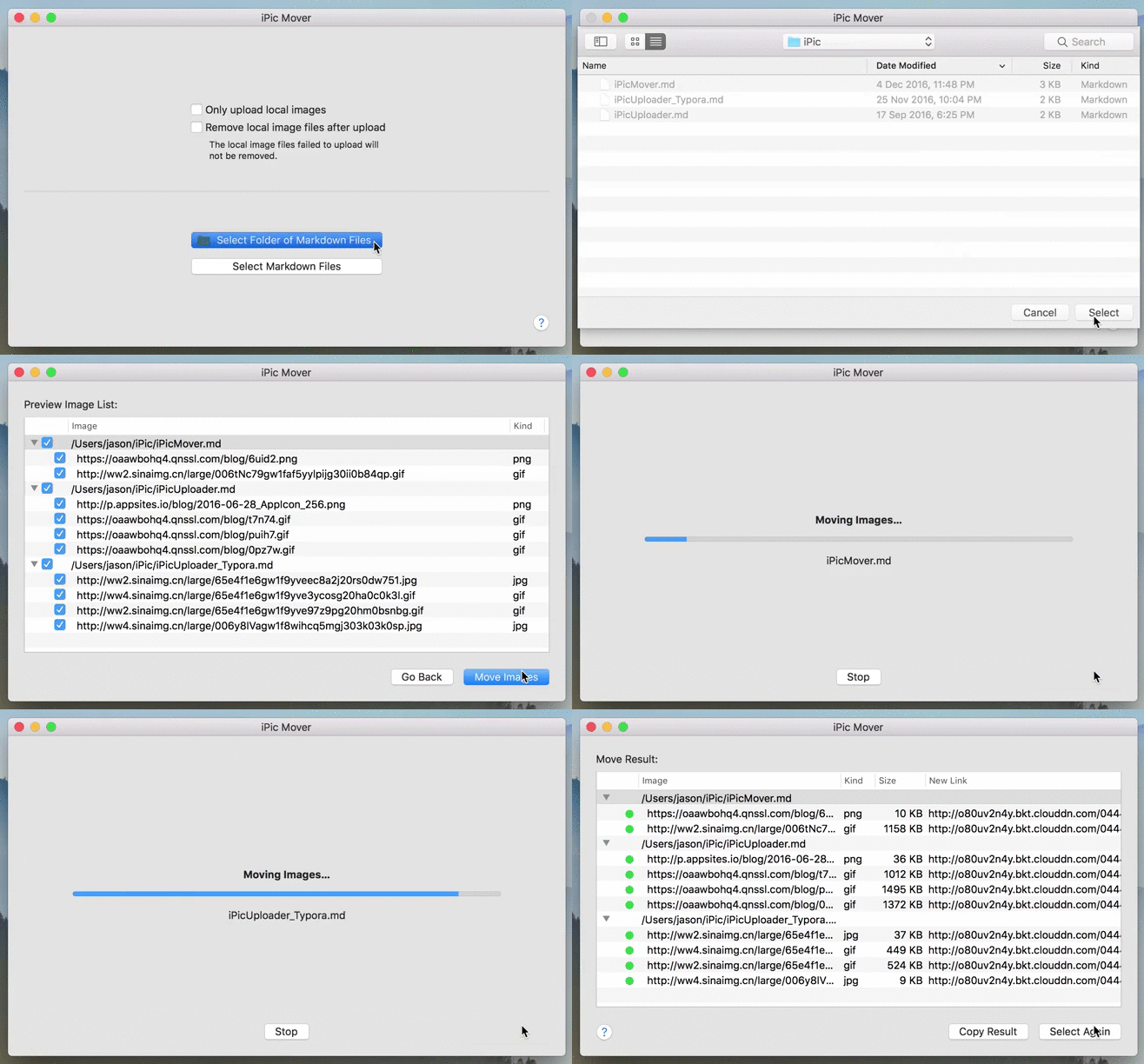
<p>You only need to select the folder of Markdown files, iPic Mover could help you to:</p>
<ul>
<li>Find all Markdown files</li>
<li>Find all the images in Markdown files</li>
<li>Upload images</li>
<li>Update image links in Markdown</li>
</ul>
<p>There’re some other options:</p>
<ul>
<li>Copy folder or files before move<ul>
<li>When selected, only update image links in copied Markdown files. The original ones will not be changed.</li>
<li><strong>Note:</strong> recommend to backup Markdown files before transfer images.</li>
</ul>
</li>
<li>Only upload local images<ul>
<li>By default, all the local images and images on cloud will be transferred to new image host. Use this option to upload only local images.</li>
</ul>
</li>
<li>Remove local image files after upload<ul>
<li>The local image files failed to upload will not be removed.</li>
</ul>
</li>
</ul>
<p>iPic Mover could sort images by size. This could help you to quickly find the big images, and then replace or compress them to reduce traffic of your sites.</p>
<h1 id="How-iPic-Mover-Works？"><a href="#How-iPic-Mover-Works？" class="headerlink" title="How iPic Mover Works？"></a>How iPic Mover Works？</h1><p>In fact iPic Mover calls iPic to upload images to the selected image host in iPic. Check more details about iPicUploader in this blog:<br><a href="https://en.toolinbox.net/iPic/iPicUploader.html">iPic Opens Upload API: iPicUploader</a></p>
<h1 id="Download-iPic-Mover"><a href="#Download-iPic-Mover" class="headerlink" title="Download iPic Mover"></a>Download iPic Mover</h1><p><a href="https://itunes.apple.com/app/id1183822957?ls=1&amp;mt=12" target="_blank" rel="external">&gt;&gt;&gt; Click to Download iPic Mover &lt;&lt;&lt;</a></p>
<p>Have a try now!</p>
<p>Any suggestions, welcome to <a href="https://toolinbox.net/html/feedback.html?app=iPicMover" target="_blank" rel="external">chat with me</a>. Looks forward to your feedback.</p>
]]></content>
    
    <summary type="html">
    
      &lt;p&gt;&lt;img src=&quot;https://p.nuli.life/blog/x4xw3.png&quot; alt=&quot;&quot;&gt;&lt;/p&gt;
&lt;h1 id=&quot;What’s-iPic-Mover-Do-I-Need-it&quot;&gt;&lt;a href=&quot;#What’s-iPic-Mover-Do-I-Need-it&quot; class=&quot;headerlink&quot; title=&quot;What’s iPic Mover? Do I Need it?&quot;&gt;&lt;/a&gt;What’s iPic Mover? Do I Need it?&lt;/h1&gt;&lt;p&gt;Did you ever meet these troubles?&lt;/p&gt;
&lt;p&gt;１. &lt;strong&gt;Upload images to cloud, and then update link in Markdown&lt;/strong&gt;&lt;/p&gt;
&lt;ul&gt;
&lt;li&gt;Most Markdown editors don’t support upload images to cloud.&lt;/li&gt;
&lt;/ul&gt;
&lt;p&gt;２. &lt;strong&gt;Change image host&lt;/strong&gt;&lt;/p&gt;
&lt;ul&gt;
&lt;li&gt;E.g., if you want to let your site support https, possibly you need to move images to new image host which supports https.&lt;/li&gt;
&lt;/ul&gt;
&lt;p&gt;３. &lt;strong&gt;Transfer images when change WordPress to Markdown&lt;/strong&gt;&lt;/p&gt;
&lt;ul&gt;
&lt;li&gt;WordPress was very popular, even popular now. But it’s a big trouble to transfer the images in WordPress as attachment.&lt;/li&gt;
&lt;li&gt;This feature is under development…&lt;/li&gt;
&lt;/ul&gt;
&lt;p&gt;４. &lt;strong&gt;Compress existing images&lt;/strong&gt;&lt;/p&gt;
&lt;ul&gt;
&lt;li&gt;You may ever uploaded very big images. But it’s very difficult to find all these images in articles, compress, upload to cloud, and then update the links.&lt;/li&gt;
&lt;li&gt;This feature is under development…&lt;/li&gt;
&lt;/ul&gt;
&lt;p&gt;In another side, iPic Mover could help you to easily transfer images in Markdown to new image host.&lt;/p&gt;
    
    </summary>
    
      <category term="iPic" scheme="https://en.toolinbox.net/categories/iPic/"/>
    
    
  </entry>
  
  <entry>
    <title>Typora: The First Markdown Editor Integrated with iPicUploader</title>
    <link href="https://en.toolinbox.net/iPic/iPicUploader_Typora.html"/>
    <id>https://en.toolinbox.net/iPic/iPicUploader_Typora.html</id>
    <published>2016-11-23T02:50:22.000Z</published>
    <updated>2022-12-17T09:02:44.208Z</updated>
    
    <content type="html"><![CDATA[<p><img src="https://p.nuli.life/blog/4grc2.jpg" alt=""></p>
<p>Now, <a href="http://www.typora.io/" target="_blank" rel="external">Typora</a>‘s user could easily insert images in Markdown with iPic’s help.</p>
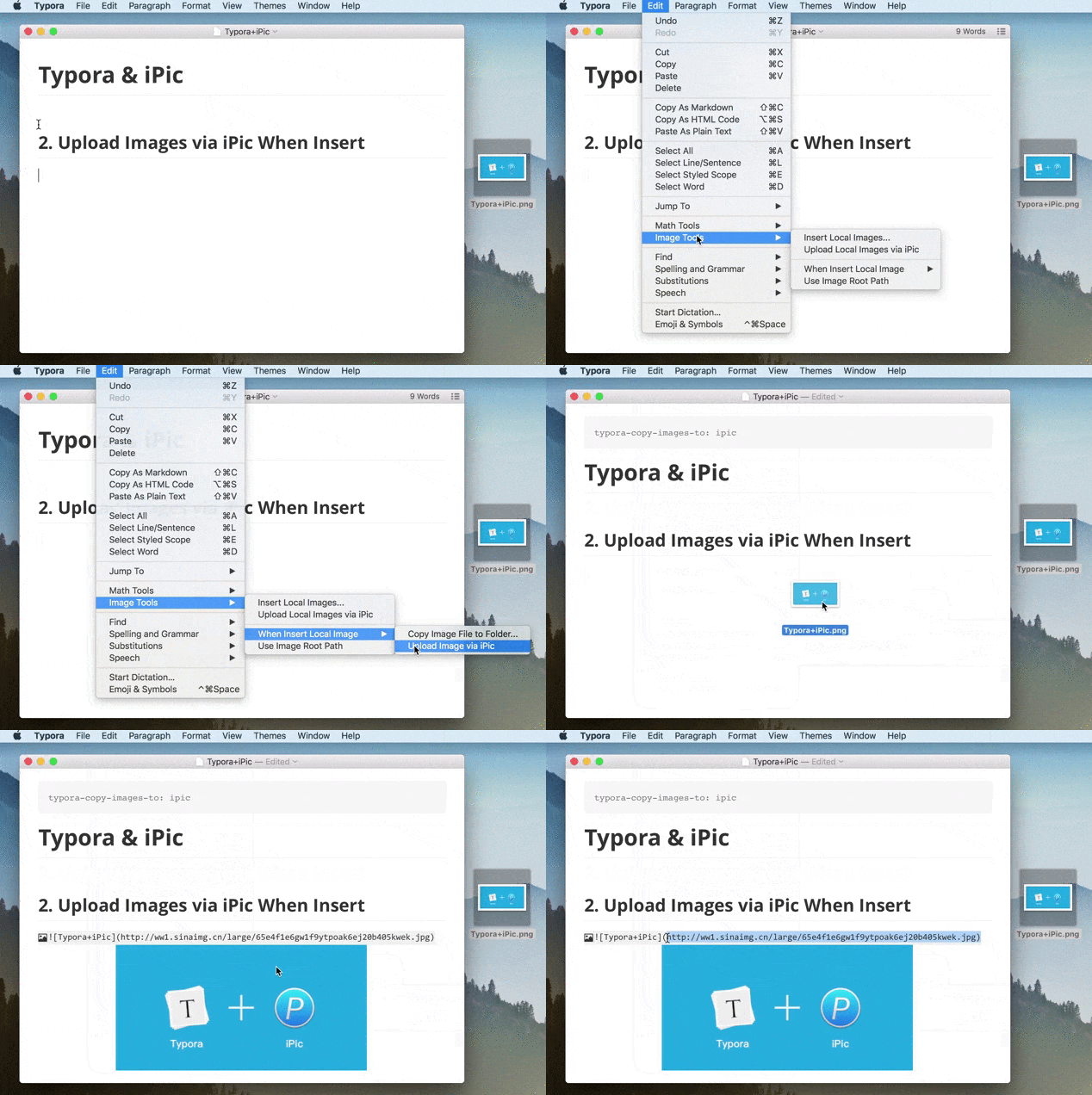
<h1 id="Upload-Local-Images-to-Cloud-via-iPic"><a href="#Upload-Local-Images-to-Cloud-via-iPic" class="headerlink" title="Upload Local Images to Cloud via iPic"></a>Upload Local Images to Cloud via iPic</h1><p>If you already insert local images in Markdown, you could easily upload them to Cloud with one click.</p>
<p><img src="https://p.nuli.life/blog/1sehg.gif" alt=""></p>
<a id="more"></a>
<h1 id="Automatically-Upload-Images-to-Cloud-When-Insert"><a href="#Automatically-Upload-Images-to-Cloud-When-Insert" class="headerlink" title="Automatically Upload Images to Cloud When Insert"></a>Automatically Upload Images to Cloud When Insert</h1><p>If you enable this option, when you insert local images, Typora will automatically upload them to Cloud and replace the link.</p>
<p><img src="https://p.nuli.life/blog/q9tea.gif" alt=""></p>
<h1 id="iPicUploader"><a href="#iPicUploader" class="headerlink" title="iPicUploader"></a>iPicUploader</h1><p>iPic opens the ability to upload images. It means if your App also needs to upload images, no need to build from scratch. Just use iPicUploader, your App could also upload images to Imgur, Flickr, Amazon S3 and other image hosts.</p>
<p><a href="http://toolinbox.net/en/iPic/iPicUploader.html" target="_blank" rel="external">Learn more about iPicUploader</a></p>
<p><strong>Typora</strong> is the first Markdown editor integrate with iPicUploader.</p>
<p>If you also want your favorite Markdown editor supports upload images by drag &amp; drop via iPic, just contact me or the editor’s team. Hope all of us could easily insert images in Markdown.</p>
<p><img src="https://p.nuli.life/blog/s2pg8.gif" alt=""></p>
]]></content>
    
    <summary type="html">
    
      &lt;p&gt;&lt;img src=&quot;https://p.nuli.life/blog/4grc2.jpg&quot; alt=&quot;&quot;&gt;&lt;/p&gt;
&lt;p&gt;Now, &lt;a href=&quot;http://www.typora.io/&quot;&gt;Typora&lt;/a&gt;‘s user could easily insert images in Markdown with iPic’s help.&lt;/p&gt;
&lt;h1 id=&quot;Upload-Local-Images-to-Cloud-via-iPic&quot;&gt;&lt;a href=&quot;#Upload-Local-Images-to-Cloud-via-iPic&quot; class=&quot;headerlink&quot; title=&quot;Upload Local Images to Cloud via iPic&quot;&gt;&lt;/a&gt;Upload Local Images to Cloud via iPic&lt;/h1&gt;&lt;p&gt;If you already insert local images in Markdown, you could easily upload them to Cloud with one click.&lt;/p&gt;
&lt;p&gt;&lt;img src=&quot;https://p.nuli.life/blog/1sehg.gif&quot; alt=&quot;&quot;&gt;&lt;/p&gt;
    
    </summary>
    
      <category term="iPic" scheme="https://en.toolinbox.net/categories/iPic/"/>
    
    
  </entry>
  
  <entry>
    <title>iPic Opens Upload API: iPicUploader</title>
    <link href="https://en.toolinbox.net/iPic/iPicUploader.html"/>
    <id>https://en.toolinbox.net/iPic/iPicUploader.html</id>
    <published>2016-09-04T23:16:11.000Z</published>
    <updated>2022-12-17T09:02:44.208Z</updated>
    
    <content type="html"><![CDATA[<h1 id="iPic"><a href="#iPic" class="headerlink" title="iPic"></a>iPic</h1><p><img src="https://p.nuli.life/blog/wc66v.jpg" alt=""></p>
<p>iPic could automatically upload images and save Markdown links on macOS.</p>
<ul>
<li>Upload images by drag &amp; drop.</li>
<li>Upload images by services with shortcut [Command + U].</li>
<li>Upload copied images with shortcut [Shift + Command + U].</li>
<li>Support Imgur, Flickr, Amazon S3 and other image hosts.</li>
<li>Support image link of Markdown format.</li>
<li><a href="http://toolinbox.net/en/iPic/" target="_blank" rel="external">Video introduction</a></li>
</ul>
<p><a href="https://itunes.apple.com/app/id1101244278?ls=1&amp;mt=12&amp;at=1000lv4R&amp;ct=iPic_home" target="_blank" rel="external">Download iPic</a> and have a try.</p>
<h1 id="iPicUploader"><a href="#iPicUploader" class="headerlink" title="iPicUploader"></a>iPicUploader</h1><p>iPic opens the ability to upload images. It means if your App also needs to upload images, no need to build from scratch. Just use iPicUploader, your App could also upload images to Imgur, Flickr, Amazon S3 and other image hosts.</p>
<a id="more"></a>
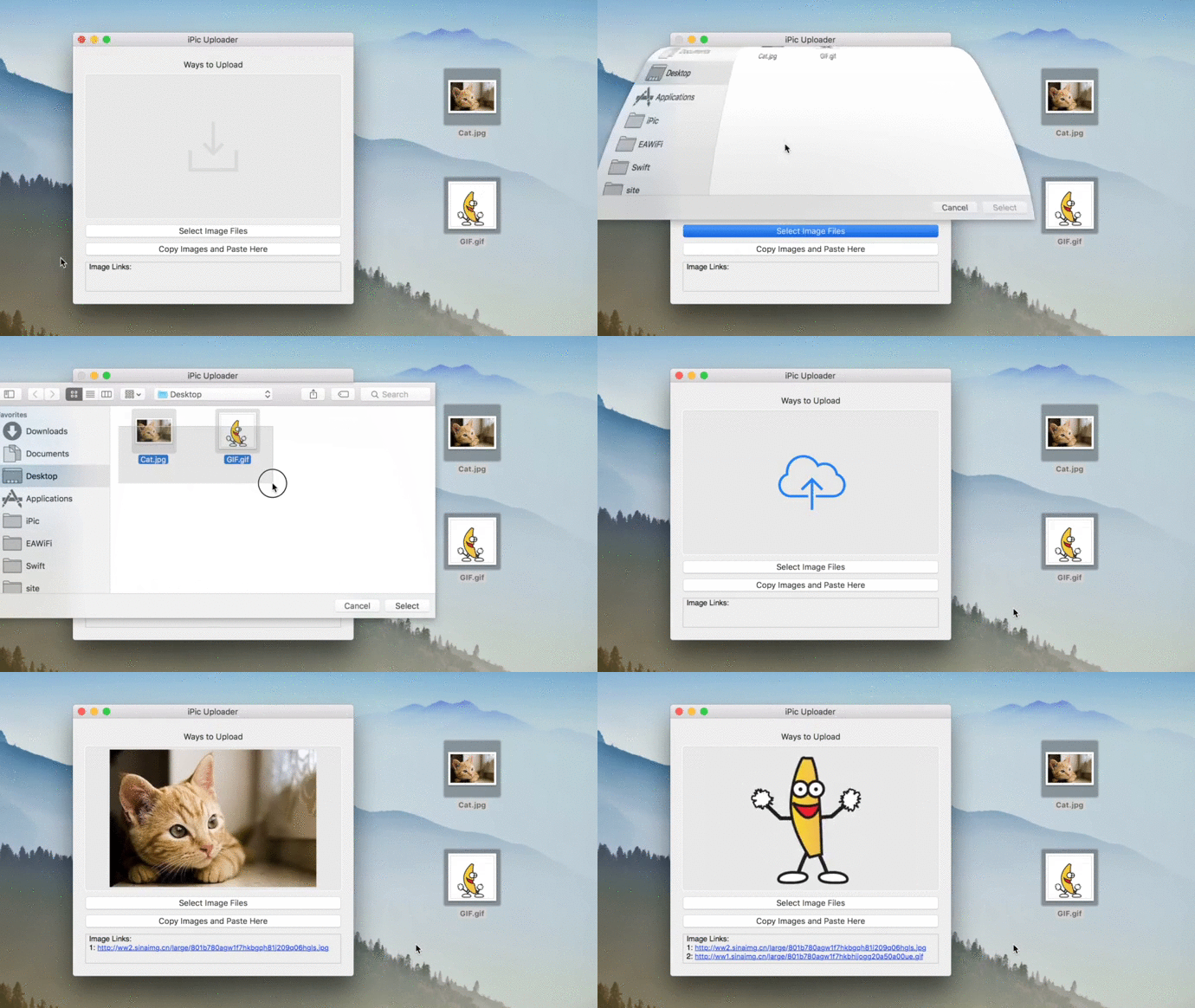
<h2 id="iPicUploader-Usage"><a href="#iPicUploader-Usage" class="headerlink" title="iPicUploader Usage"></a>iPicUploader Usage</h2><p>Upload image file:</p>
<figure class="highlight swift"><table><tr><td class="gutter"><pre><div class="line">1</div><div class="line">2</div><div class="line">3</div><div class="line">4</div><div class="line">5</div><div class="line">6</div><div class="line">7</div><div class="line">8</div><div class="line">9</div><div class="line">10</div></pre></td><td class="code"><pre><div class="line"><span class="keyword">let</span> imageFilePath = <span class="string">"/Path/to/the/pic.jpg"</span></div><div class="line"></div><div class="line">iPic.uploadImage(imageFilePath, handler: &#123; (imageLink, error) <span class="keyword">in</span>    </div><div class="line">	<span class="keyword">if</span> <span class="keyword">let</span> imageLink = imageLink &#123;</div><div class="line">		<span class="comment">// Image uploaded        </span></div><div class="line">	   </div><div class="line">	&#125; <span class="keyword">else</span> <span class="keyword">if</span> <span class="keyword">let</span> error = error &#123;</div><div class="line">		<span class="comment">// Some error happened</span></div><div class="line">	&#125;</div><div class="line">&#125;)</div></pre></td></tr></table></figure>
<p>Upload image data:</p>
<figure class="highlight swift"><table><tr><td class="gutter"><pre><div class="line">1</div><div class="line">2</div><div class="line">3</div><div class="line">4</div><div class="line">5</div><div class="line">6</div><div class="line">7</div><div class="line">8</div><div class="line">9</div><div class="line">10</div><div class="line">11</div></pre></td><td class="code"><pre><div class="line"><span class="keyword">let</span> imageFilePath = <span class="string">"/Path/to/the/pic.jpg"</span></div><div class="line"><span class="keyword">let</span> imageData = <span class="type">NSData</span>(contentsOfFile: imageFilePath)!</div><div class="line"></div><div class="line">iPic.uploadImage(imageData, handler: &#123; (imageLink, error) <span class="keyword">in</span>    </div><div class="line">	<span class="keyword">if</span> <span class="keyword">let</span> imageLink = imageLink &#123;</div><div class="line">		<span class="comment">// Image uploaded        </span></div><div class="line">	   </div><div class="line">	&#125; <span class="keyword">else</span> <span class="keyword">if</span> <span class="keyword">let</span> error = error &#123;</div><div class="line">		<span class="comment">// Some error happened</span></div><div class="line">	&#125;</div><div class="line">&#125;)</div></pre></td></tr></table></figure>
<p>Upload NSImage:</p>
<figure class="highlight swift"><table><tr><td class="gutter"><pre><div class="line">1</div><div class="line">2</div><div class="line">3</div><div class="line">4</div><div class="line">5</div><div class="line">6</div><div class="line">7</div><div class="line">8</div><div class="line">9</div><div class="line">10</div><div class="line">11</div></pre></td><td class="code"><pre><div class="line"><span class="keyword">let</span> imageFilePath = <span class="string">"/Path/to/the/pic.jpg"</span></div><div class="line"><span class="keyword">let</span> image = <span class="type">NSImage</span>(contentsOfFile: imageFilePath)</div><div class="line"></div><div class="line">iPic.uploadImage(image, handler: &#123; (imageLink, error) <span class="keyword">in</span>    </div><div class="line">	<span class="keyword">if</span> <span class="keyword">let</span> imageLink = imageLink &#123;</div><div class="line">		<span class="comment">// Image uploaded        </span></div><div class="line">	   </div><div class="line">	&#125; <span class="keyword">else</span> <span class="keyword">if</span> <span class="keyword">let</span> error = error &#123;</div><div class="line">		<span class="comment">// Some error happened</span></div><div class="line">	&#125;</div><div class="line">&#125;)</div></pre></td></tr></table></figure>
<h2 id="iPicUploader-Example"><a href="#iPicUploader-Example" class="headerlink" title="iPicUploader Example"></a>iPicUploader Example</h2><p>iPicUploader also includes a full example. You will feel easy to start. To run the example project, just clone current repository and open <em>iPicUploader.xcworkspace</em>.</p>
<p>Note: </p>
<ul>
<li>As the demo needs to upload images by iPic, you need to <a href="http://toolinbox.net/html/DownloadiPicWithService.html" target="_blank" rel="external">download iPic</a> at first. </li>
<li>No worry, you will also be guided to download iPic in the example.</li>
<li>The example already dealt with these cases:<ul>
<li>If iPic wasn’t installed, guide user to download.</li>
<li>If iPic wasn’t running, launch iPic automatically.</li>
<li>If iPic is running but not compatible, guide user to download latest version.</li>
</ul>
</li>
</ul>
<p>Now, let’s have a look how the example upload images.</p>
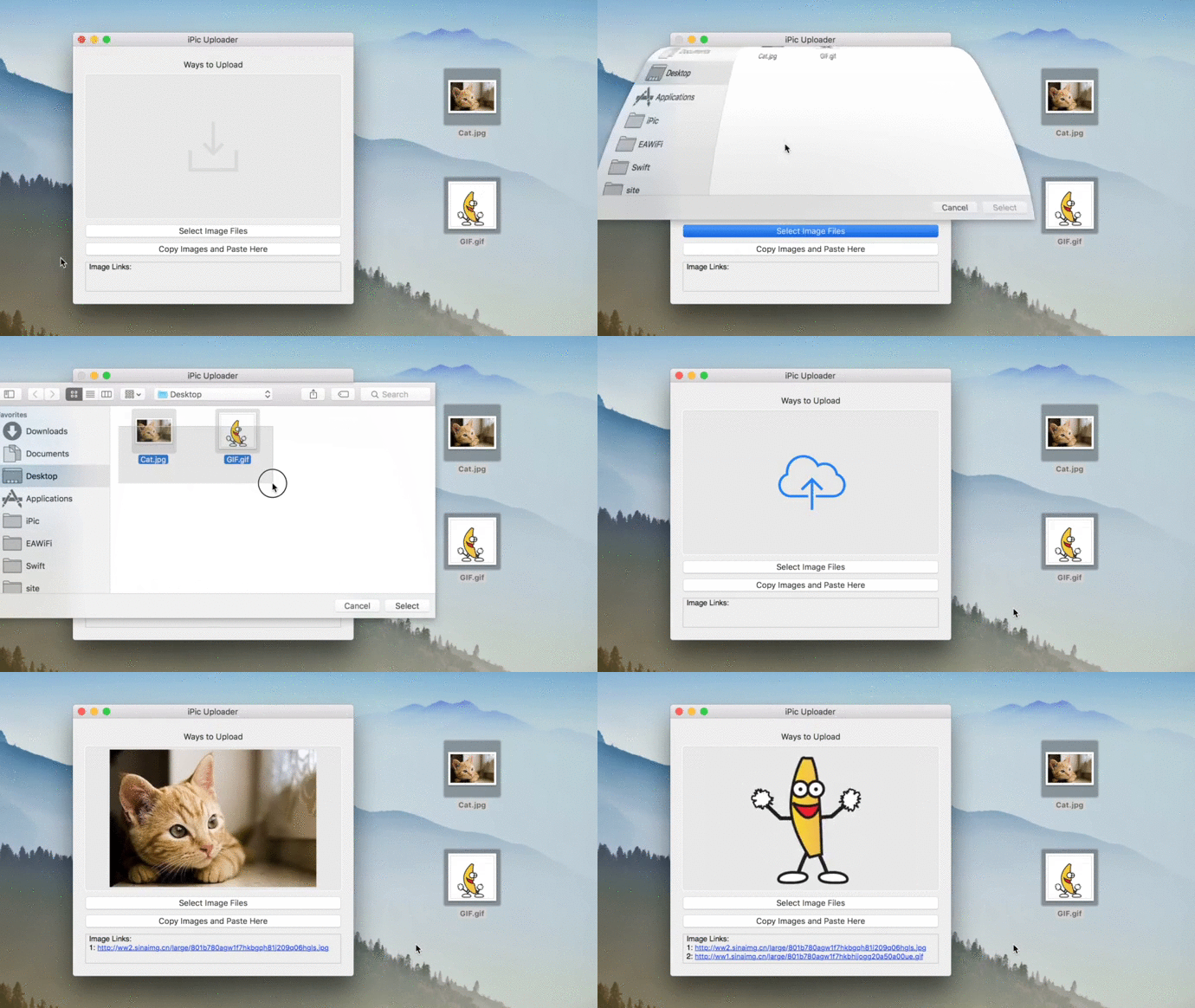
<h3 id="1-Upload-Images-by-Drag-amp-Drop"><a href="#1-Upload-Images-by-Drag-amp-Drop" class="headerlink" title="1. Upload Images by Drag &amp; Drop"></a>1. Upload Images by Drag &amp; Drop</h3><p><img src="https://p.nuli.life/blog/9oejm.gif" alt=""></p>
<p>As you can see, iPicUploader support uploads multi-images at a time.</p>
<h3 id="2-Upload-Images-by-Select-Images-Files"><a href="#2-Upload-Images-by-Select-Images-Files" class="headerlink" title="2. Upload Images by Select Images Files"></a>2. Upload Images by Select Images Files</h3><p><img src="https://p.nuli.life/blog/cctb3.gif" alt=""></p>
<h3 id="3-Upload-Images-by-Copy-Image-and-Paste"><a href="#3-Upload-Images-by-Copy-Image-and-Paste" class="headerlink" title="3. Upload Images by Copy Image and Paste"></a>3. Upload Images by Copy Image and Paste</h3><p><img src="https://p.nuli.life/blog/zrllz.gif" alt=""></p>
<p>Beside copy image files, you can also copy the image in other Apps to upload.</p>
<h2 id="Requirements"><a href="#Requirements" class="headerlink" title="Requirements"></a>Requirements</h2><p>As iPic runs on macOS 10.11 and newer version, iPicUploader also needs macOS 10.11+</p>
<h2 id="Installation"><a href="#Installation" class="headerlink" title="Installation"></a>Installation</h2><p>iPicUploader is available through <a href="https://cocoapods.org/?q=ipicuploader" target="_blank" rel="external">CocoaPods</a>. To install<br>it, simply add the following line to your Podfile:</p>
<figure class="highlight ruby"><table><tr><td class="gutter"><pre><div class="line">1</div></pre></td><td class="code"><pre><div class="line">pod <span class="string">"iPicUploader"</span></div></pre></td></tr></table></figure>
<h2 id="License"><a href="#License" class="headerlink" title="License"></a>License</h2><p>iPicUploader is available under the MIT license.</p>
]]></content>
    
    <summary type="html">
    
      &lt;h1 id=&quot;iPic&quot;&gt;&lt;a href=&quot;#iPic&quot; class=&quot;headerlink&quot; title=&quot;iPic&quot;&gt;&lt;/a&gt;iPic&lt;/h1&gt;&lt;p&gt;&lt;img src=&quot;https://p.nuli.life/blog/wc66v.jpg&quot; alt=&quot;&quot;&gt;&lt;/p&gt;
&lt;p&gt;iPic could automatically upload images and save Markdown links on macOS.&lt;/p&gt;
&lt;ul&gt;
&lt;li&gt;Upload images by drag &amp;amp; drop.&lt;/li&gt;
&lt;li&gt;Upload images by services with shortcut [Command + U].&lt;/li&gt;
&lt;li&gt;Upload copied images with shortcut [Shift + Command + U].&lt;/li&gt;
&lt;li&gt;Support Imgur, Flickr, Amazon S3 and other image hosts.&lt;/li&gt;
&lt;li&gt;Support image link of Markdown format.&lt;/li&gt;
&lt;li&gt;&lt;a href=&quot;http://toolinbox.net/en/iPic/&quot;&gt;Video introduction&lt;/a&gt;&lt;/li&gt;
&lt;/ul&gt;
&lt;p&gt;&lt;a href=&quot;https://itunes.apple.com/app/id1101244278?ls=1&amp;amp;mt=12&amp;amp;at=1000lv4R&amp;amp;ct=iPic_home&quot;&gt;Download iPic&lt;/a&gt; and have a try.&lt;/p&gt;
&lt;h1 id=&quot;iPicUploader&quot;&gt;&lt;a href=&quot;#iPicUploader&quot; class=&quot;headerlink&quot; title=&quot;iPicUploader&quot;&gt;&lt;/a&gt;iPicUploader&lt;/h1&gt;&lt;p&gt;iPic opens the ability to upload images. It means if your App also needs to upload images, no need to build from scratch. Just use iPicUploader, your App could also upload images to Imgur, Flickr, Amazon S3 and other image hosts.&lt;/p&gt;
    
    </summary>
    
      <category term="iPic" scheme="https://en.toolinbox.net/categories/iPic/"/>
    
    
  </entry>
  
  <entry>
    <title>Add Amazon S3 in iPic</title>
    <link href="https://en.toolinbox.net/iPic/AddS3.html"/>
    <id>https://en.toolinbox.net/iPic/AddS3.html</id>
    <published>2016-08-29T10:45:26.000Z</published>
    <updated>2022-12-17T09:02:44.205Z</updated>
    
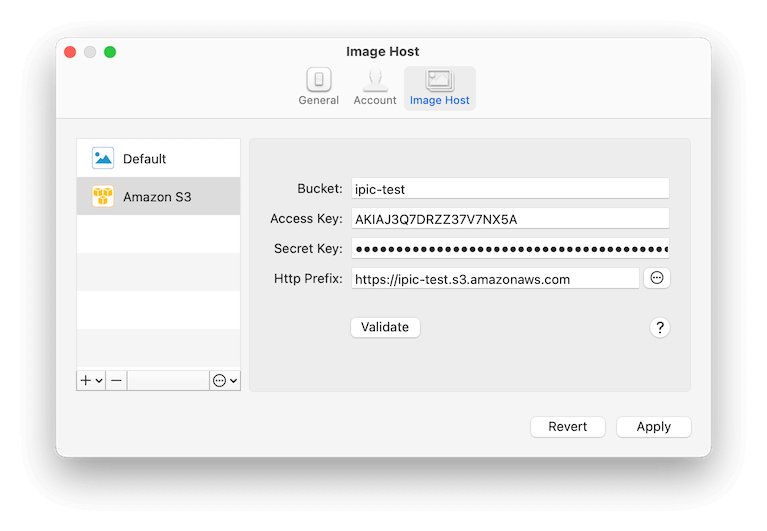
    <content type="html"><![CDATA[<p>Amazon Simple Storage Service (<a href="https://aws.amazon.com/s3/" target="_blank" rel="external">Amazon S3</a>) is easy to use object storage, with a simple web service interface to store and retrieve any amount of data from anywhere on the web. For more introductions, please refer to <a href="http://docs.aws.amazon.com/AmazonS3/latest/gsg/GetStartedWithS3.html" target="_blank" rel="external">Getting Started with Amazon Simple Storage Service</a></p>
<h1 id="Add-Amazon-S3-in-iPic"><a href="#Add-Amazon-S3-in-iPic" class="headerlink" title="Add Amazon S3 in iPic"></a>Add Amazon S3 in iPic</h1><p>Open iPic’s <code>Preferences</code>, clicks <code>Image Host</code>, and add <code>Amazon S3</code>.</p>
<p><img src="https://p.nuli.life/blog/xyrqy.png" alt=""></p>
<p>Here is the introductions for all parts:</p>
<ul>
<li><code>Bucket</code><ul>
<li>Same with the bucket in Amazon S3</li>
</ul>
</li>
<li><code>Access Key</code> and <code>Secret Key</code><ul>
<li>Refer to <a href="http://docs.aws.amazon.com/IAM/latest/UserGuide/introduction.html" target="_blank" rel="external">AWS Identity and Access Management (IAM) </a></li>
</ul>
</li>
<li><code>Http Prefix</code><ul>
<li>The endpoint for Amazon S3 bucket, e.g., <em><a href="https://ipic-test.s3.amazonaws.com" target="_blank" rel="external">https://ipic-test.s3.amazonaws.com</a></em></li>
</ul>
</li>
</ul>
<p>After fill all the parts, clicks the <strong>Validate</strong> button. If all the information above is correct, you can see the link of <strong>Passed</strong> in the right.</p>
<a id="more"></a>
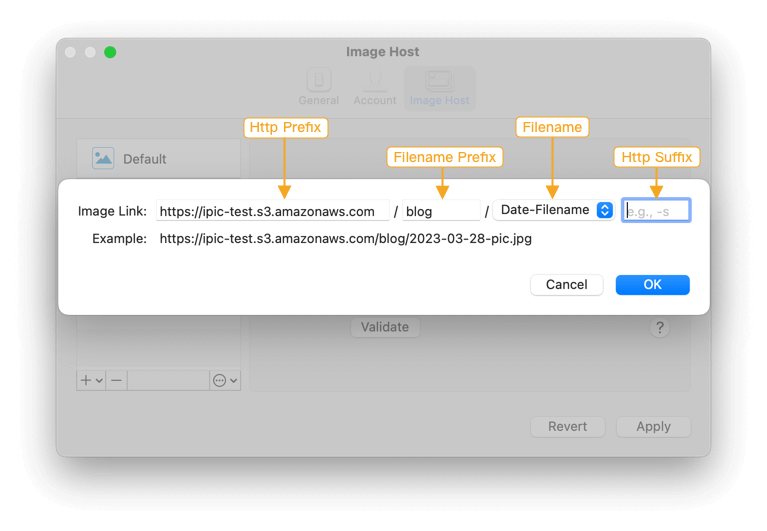
<p>Beside the basic configuration above, Amazon S3 also supports several advanced ones. Click the ‘Advanced’ button in right of <code>Http Prefix</code>, you can see the following setting page.</p>
<p><img src="https://p.nuli.life/blog/lweef.png" alt=""></p>
<ul>
<li><code>Http Prefix</code><ul>
<li>Same with what ever introduced.</li>
</ul>
</li>
<li><code>Filename Prefix</code><ul>
<li>Could understand as the folder in Amazon S3</li>
<li>For example, if you want iPic upload all images in <code>blog</code> folder, just input <code>blog</code> here. The image link will like <em><a href="https://ipic-test.s3.amazonaws.com/blog/pic.jpg" target="_blank" rel="external">https://ipic-test.s3.amazonaws.com/blog/pic.jpg</a></em></li>
</ul>
</li>
<li><code>Filename</code><ul>
<li>The filename saved in Amazon S3. Now iPic supports these 3 kinds of filename.</li>
<li><code>Only Filename</code> e.g.,  <code>pic.jpg</code></li>
<li><code>Date-Filename</code> e.g., <code>2016-06-16-pic.jpg</code></li>
<li><code>Random</code> e.g., <code>jk8l1.jpg</code>, could help to shorten the link.</li>
</ul>
</li>
<li><code>Http Suffix</code><ul>
<li>Any characters in the end of the link.</li>
</ul>
</li>
</ul>
<p>After all, clicks <strong>Apply</strong> to save.</p>
]]></content>
    
    <summary type="html">
    
      &lt;p&gt;Amazon Simple Storage Service (&lt;a href=&quot;https://aws.amazon.com/s3/&quot;&gt;Amazon S3&lt;/a&gt;) is easy to use object storage, with a simple web service interface to store and retrieve any amount of data from anywhere on the web. For more introductions, please refer to &lt;a href=&quot;http://docs.aws.amazon.com/AmazonS3/latest/gsg/GetStartedWithS3.html&quot;&gt;Getting Started with Amazon Simple Storage Service&lt;/a&gt;&lt;/p&gt;
&lt;h1 id=&quot;Add-Amazon-S3-in-iPic&quot;&gt;&lt;a href=&quot;#Add-Amazon-S3-in-iPic&quot; class=&quot;headerlink&quot; title=&quot;Add Amazon S3 in iPic&quot;&gt;&lt;/a&gt;Add Amazon S3 in iPic&lt;/h1&gt;&lt;p&gt;Open iPic’s &lt;code&gt;Preferences&lt;/code&gt;, clicks &lt;code&gt;Image Host&lt;/code&gt;, and add &lt;code&gt;Amazon S3&lt;/code&gt;.&lt;/p&gt;
&lt;p&gt;&lt;img src=&quot;https://p.nuli.life/blog/xyrqy.png&quot; alt=&quot;&quot;&gt;&lt;/p&gt;
&lt;p&gt;Here is the introductions for all parts:&lt;/p&gt;
&lt;ul&gt;
&lt;li&gt;&lt;code&gt;Bucket&lt;/code&gt;&lt;ul&gt;
&lt;li&gt;Same with the bucket in Amazon S3&lt;/li&gt;
&lt;/ul&gt;
&lt;/li&gt;
&lt;li&gt;&lt;code&gt;Access Key&lt;/code&gt; and &lt;code&gt;Secret Key&lt;/code&gt;&lt;ul&gt;
&lt;li&gt;Refer to &lt;a href=&quot;http://docs.aws.amazon.com/IAM/latest/UserGuide/introduction.html&quot;&gt;AWS Identity and Access Management (IAM) &lt;/a&gt;&lt;/li&gt;
&lt;/ul&gt;
&lt;/li&gt;
&lt;li&gt;&lt;code&gt;Http Prefix&lt;/code&gt;&lt;ul&gt;
&lt;li&gt;The endpoint for Amazon S3 bucket, e.g., &lt;em&gt;&lt;a href=&quot;https://ipic-test.s3.amazonaws.com&quot;&gt;https://ipic-test.s3.amazonaws.com&lt;/a&gt;&lt;/em&gt;&lt;/li&gt;
&lt;/ul&gt;
&lt;/li&gt;
&lt;/ul&gt;
&lt;p&gt;After fill all the parts, clicks the &lt;strong&gt;Validate&lt;/strong&gt; button. If all the information above is correct, you can see the link of &lt;strong&gt;Passed&lt;/strong&gt; in the right.&lt;/p&gt;
    
    </summary>
    
      <category term="iPic" scheme="https://en.toolinbox.net/categories/iPic/"/>
    
    
  </entry>
  
  <entry>
    <title>iPic Change Log</title>
    <link href="https://en.toolinbox.net/iPic/ChangeLog.html"/>
    <id>https://en.toolinbox.net/iPic/ChangeLog.html</id>
    <published>2016-05-22T10:32:16.000Z</published>
    <updated>2022-12-17T09:02:44.206Z</updated>
    
    <content type="html"><![CDATA[<h1 id="v1-5-3"><a href="#v1-5-3" class="headerlink" title="v1.5.3"></a>v1.5.3</h1><p>2018/03/29</p>
<ul>
<li>Optimize upload images to default image host.</li>
</ul>
<h1 id="v1-5-0"><a href="#v1-5-0" class="headerlink" title="v1.5.0"></a>v1.5.0</h1><p>2017/10/23</p>
<ul>
<li>Could upload images to Tencent Cloud Object Storage (COS).</li>
<li>Could directly drag GIF images to upload.</li>
</ul>
<h1 id="v1-4-8"><a href="#v1-4-8" class="headerlink" title="v1.4.8"></a>v1.4.8</h1><p>2016/05/19</p>
<ul>
<li>Bug fixes and improvements.</li>
</ul>
<h1 id="v1-4-0"><a href="#v1-4-0" class="headerlink" title="v1.4.0"></a>v1.4.0</h1><p>2016/12/21</p>
<ul>
<li>Full support for https.</li>
<li>Compress images before upload.</li>
<li>Support <a href="https://en.toolinbox.net/iPic/iPicMover.html">iPic Mover</a>, which could easily move images in Markdown.</li>
</ul>
<h1 id="v1-3-1"><a href="#v1-3-1" class="headerlink" title="v1.3.1"></a>v1.3.1</h1><p>2016/10/18</p>
<ul>
<li>Could duplicate image host.</li>
<li>Includ <a href="https://github.com/toolinbox/iPicUploader" target="_blank" rel="external">iPicUploader</a> service.</li>
<li>Fit to Swift 3.0</li>
</ul>
<h1 id="v1-2-0"><a href="#v1-2-0" class="headerlink" title="v1.2.0"></a>v1.2.0</h1><p>2016/08/29</p>
<ul>
<li>Support <a href="https://aws.amazon.com/s3/" target="_blank" rel="external">Amazon S3</a> </li>
<li>Fixed Bugs<ul>
<li>When upload multi-files, the order of links keep the same with files.</li>
<li>Sometimes no response when drag images from Dock to upload.</li>
</ul>
</li>
</ul>
<h1 id="v1-1-2"><a href="#v1-1-2" class="headerlink" title="v1.1.2"></a>v1.1.2</h1><p>2016/08/21</p>
<ul>
<li>Support <a href="https://intl.aliyun.com/product/oss" target="_blank" rel="external">Alibaba Cloud Object Storage Service (OSS)</a></li>
</ul>
<a id="more"></a>
<h1 id="v1-1-1"><a href="#v1-1-1" class="headerlink" title="v1.1.1"></a>v1.1.1</h1><p>2016/08/01</p>
<ul>
<li>Support macOS Sierra.</li>
<li>Support multi Imgur or Flickr accounts.</li>
<li>Support upload copied images by shortcut.</li>
<li>Support change image link format in main menu.</li>
<li>Save all images’ link when upload multi-images.</li>
</ul>
<h1 id="v1-1-0"><a href="#v1-1-0" class="headerlink" title="v1.1.0"></a>v1.1.0</h1><p>2016/07/01</p>
<ul>
<li>Release on Mac App Store</li>
</ul>
<h1 id="v1-0-7"><a href="#v1-0-7" class="headerlink" title="v1.0.7"></a>v1.0.7</h1><p>2016/07/01</p>
<ul>
<li>Support upload to your Imgur account.</li>
</ul>
<h1 id="v1-0-6"><a href="#v1-0-6" class="headerlink" title="v1.0.6"></a>v1.0.6</h1><p>2016/06/29</p>
<ul>
<li>Add image type in link when upload to Weibo.</li>
</ul>
<h1 id="v1-0-5"><a href="#v1-0-5" class="headerlink" title="v1.0.5"></a>v1.0.5</h1><p>2016/06/27</p>
<ul>
<li>Support sandbox mode.</li>
<li>Adjust menu bar icon.</li>
</ul>
<h1 id="v0-8-0"><a href="#v0-8-0" class="headerlink" title="v0.8.0"></a>v0.8.0</h1><p>2016/06/22</p>
<ul>
<li>Support upload image to <a href="https://www.flickr.com" target="_blank" rel="external">Flickr</a></li>
<li>Support upload by services in Finder.</li>
<li>Support upload by dragging image to iPic in menu bar.</li>
</ul>
<h1 id="v0-7-6"><a href="#v0-7-6" class="headerlink" title="v0.7.6"></a>v0.7.6</h1><p>2016/06/11</p>
<ul>
<li>Support upload image to <a href="https://www.upyun.com" target="_blank" rel="external">UpYun</a></li>
</ul>
<h1 id="v0-7-1"><a href="#v0-7-1" class="headerlink" title="v0.7.1"></a>v0.7.1</h1><p>2016/05/31</p>
<ul>
<li>Support upload image to <a href="https://imgur.com" target="_blank" rel="external">Imgur</a></li>
<li>Support key prefix for <a href="https://qiniu.com" target="_blank" rel="external">Qiniu</a></li>
<li>Record more upload history. Save when quit iPic.</li>
<li>Support start at login.</li>
</ul>
<h1 id="v0-6-0"><a href="#v0-6-0" class="headerlink" title="v0.6.0"></a>v0.6.0</h1><p>2016/05/25</p>
<ul>
<li>Support upload to <a href="https://qiniu.com" target="_blank" rel="external">Qiniu</a></li>
<li>Show auto upload status in menu bar.</li>
<li>Show upload progress in menu bar.</li>
<li>Support open menu by shortcut.</li>
</ul>
<h1 id="v0-5-1"><a href="#v0-5-1" class="headerlink" title="v0.5.1"></a>v0.5.1</h1><p>2016/05/17</p>
<ul>
<li>First trial version.</li>
<li>Support auto upload to Weibo.</li>
</ul>
]]></content>
    
    <summary type="html">
    
      &lt;h1 id=&quot;v1-5-3&quot;&gt;&lt;a href=&quot;#v1-5-3&quot; class=&quot;headerlink&quot; title=&quot;v1.5.3&quot;&gt;&lt;/a&gt;v1.5.3&lt;/h1&gt;&lt;p&gt;2018/03/29&lt;/p&gt;
&lt;ul&gt;
&lt;li&gt;Optimize upload images to default image host.&lt;/li&gt;
&lt;/ul&gt;
&lt;h1 id=&quot;v1-5-0&quot;&gt;&lt;a href=&quot;#v1-5-0&quot; class=&quot;headerlink&quot; title=&quot;v1.5.0&quot;&gt;&lt;/a&gt;v1.5.0&lt;/h1&gt;&lt;p&gt;2017/10/23&lt;/p&gt;
&lt;ul&gt;
&lt;li&gt;Could upload images to Tencent Cloud Object Storage (COS).&lt;/li&gt;
&lt;li&gt;Could directly drag GIF images to upload.&lt;/li&gt;
&lt;/ul&gt;
&lt;h1 id=&quot;v1-4-8&quot;&gt;&lt;a href=&quot;#v1-4-8&quot; class=&quot;headerlink&quot; title=&quot;v1.4.8&quot;&gt;&lt;/a&gt;v1.4.8&lt;/h1&gt;&lt;p&gt;2016/05/19&lt;/p&gt;
&lt;ul&gt;
&lt;li&gt;Bug fixes and improvements.&lt;/li&gt;
&lt;/ul&gt;
&lt;h1 id=&quot;v1-4-0&quot;&gt;&lt;a href=&quot;#v1-4-0&quot; class=&quot;headerlink&quot; title=&quot;v1.4.0&quot;&gt;&lt;/a&gt;v1.4.0&lt;/h1&gt;&lt;p&gt;2016/12/21&lt;/p&gt;
&lt;ul&gt;
&lt;li&gt;Full support for https.&lt;/li&gt;
&lt;li&gt;Compress images before upload.&lt;/li&gt;
&lt;li&gt;Support &lt;a href=&quot;https://en.toolinbox.net/iPic/iPicMover.html&quot;&gt;iPic Mover&lt;/a&gt;, which could easily move images in Markdown.&lt;/li&gt;
&lt;/ul&gt;
&lt;h1 id=&quot;v1-3-1&quot;&gt;&lt;a href=&quot;#v1-3-1&quot; class=&quot;headerlink&quot; title=&quot;v1.3.1&quot;&gt;&lt;/a&gt;v1.3.1&lt;/h1&gt;&lt;p&gt;2016/10/18&lt;/p&gt;
&lt;ul&gt;
&lt;li&gt;Could duplicate image host.&lt;/li&gt;
&lt;li&gt;Includ &lt;a href=&quot;https://github.com/toolinbox/iPicUploader&quot;&gt;iPicUploader&lt;/a&gt; service.&lt;/li&gt;
&lt;li&gt;Fit to Swift 3.0&lt;/li&gt;
&lt;/ul&gt;
&lt;h1 id=&quot;v1-2-0&quot;&gt;&lt;a href=&quot;#v1-2-0&quot; class=&quot;headerlink&quot; title=&quot;v1.2.0&quot;&gt;&lt;/a&gt;v1.2.0&lt;/h1&gt;&lt;p&gt;2016/08/29&lt;/p&gt;
&lt;ul&gt;
&lt;li&gt;Support &lt;a href=&quot;https://aws.amazon.com/s3/&quot;&gt;Amazon S3&lt;/a&gt; &lt;/li&gt;
&lt;li&gt;Fixed Bugs&lt;ul&gt;
&lt;li&gt;When upload multi-files, the order of links keep the same with files.&lt;/li&gt;
&lt;li&gt;Sometimes no response when drag images from Dock to upload.&lt;/li&gt;
&lt;/ul&gt;
&lt;/li&gt;
&lt;/ul&gt;
&lt;h1 id=&quot;v1-1-2&quot;&gt;&lt;a href=&quot;#v1-1-2&quot; class=&quot;headerlink&quot; title=&quot;v1.1.2&quot;&gt;&lt;/a&gt;v1.1.2&lt;/h1&gt;&lt;p&gt;2016/08/21&lt;/p&gt;
&lt;ul&gt;
&lt;li&gt;Support &lt;a href=&quot;https://intl.aliyun.com/product/oss&quot;&gt;Alibaba Cloud Object Storage Service (OSS)&lt;/a&gt;&lt;/li&gt;
&lt;/ul&gt;
    
    </summary>
    
      <category term="iPic" scheme="https://en.toolinbox.net/categories/iPic/"/>
    
    
  </entry>
  
  <entry>
    <title>iHosts Was Recommended by Many Japanese Sites</title>
    <link href="https://en.toolinbox.net/iHosts/iHostsJapaneseMedia.html"/>
    <id>https://en.toolinbox.net/iHosts/iHostsJapaneseMedia.html</id>
    <published>2016-05-11T13:42:32.000Z</published>
    <updated>2022-12-17T09:02:44.214Z</updated>
    
    <content type="html"><![CDATA[<p><img src="https://p.nuli.life/blog/mb423.jpg" alt=""></p>
<p><a href="https://itunes.apple.com/app/id1102004240?ls=1&amp;mt=12&amp;at=1000lv4R&amp;ct=iHosts_home" target="_blank" rel="external">iHosts</a>, perfect for editing /etc/hosts on Mac, was recommended by many Japanese sites, e.g., </p>
<ul>
<li><a href="http://veadardiary.blog29.fc2.com/blog-entry-6141.html" target="_blank" rel="external">Macの手書き説明書</a></li>
<li><a href="http://loumo.jp/wp/archive/20160511120017/" target="_blank" rel="external">OS X の hosts ファイルを編集、切り替えが楽になるアプリ iHosts</a></li>
</ul>
<p>Use iHosts to organise your /etc/hosts now for free now!</p>
<p><a href="https://itunes.apple.com/app/id1102004240?ls=1&amp;mt=12&amp;at=1000lv4R&amp;ct=iHosts_home" target="_blank" rel="external"><img src="https://p.nuli.life/blog/djbo2.jpg" alt="Mac App Store"></a></p>
]]></content>
    
    <summary type="html">
    
      &lt;p&gt;&lt;img src=&quot;https://p.nuli.life/blog/mb423.jpg&quot; alt=&quot;&quot;&gt;&lt;/p&gt;
&lt;p&gt;&lt;a href=&quot;https://itunes.apple.com/app/id1102004240?ls=1&amp;amp;mt=12&amp;amp;at=100
    
    </summary>
    
      <category term="iHosts" scheme="https://en.toolinbox.net/categories/iHosts/"/>
    
    
  </entry>
  
  <entry>
    <title>iHosts Hits No. 2 App on Mac App Store</title>
    <link href="https://en.toolinbox.net/iHosts/iHostsMacAppStore.html"/>
    <id>https://en.toolinbox.net/iHosts/iHostsMacAppStore.html</id>
    <published>2016-05-07T11:09:59.000Z</published>
    <updated>2022-12-17T09:02:44.215Z</updated>
    
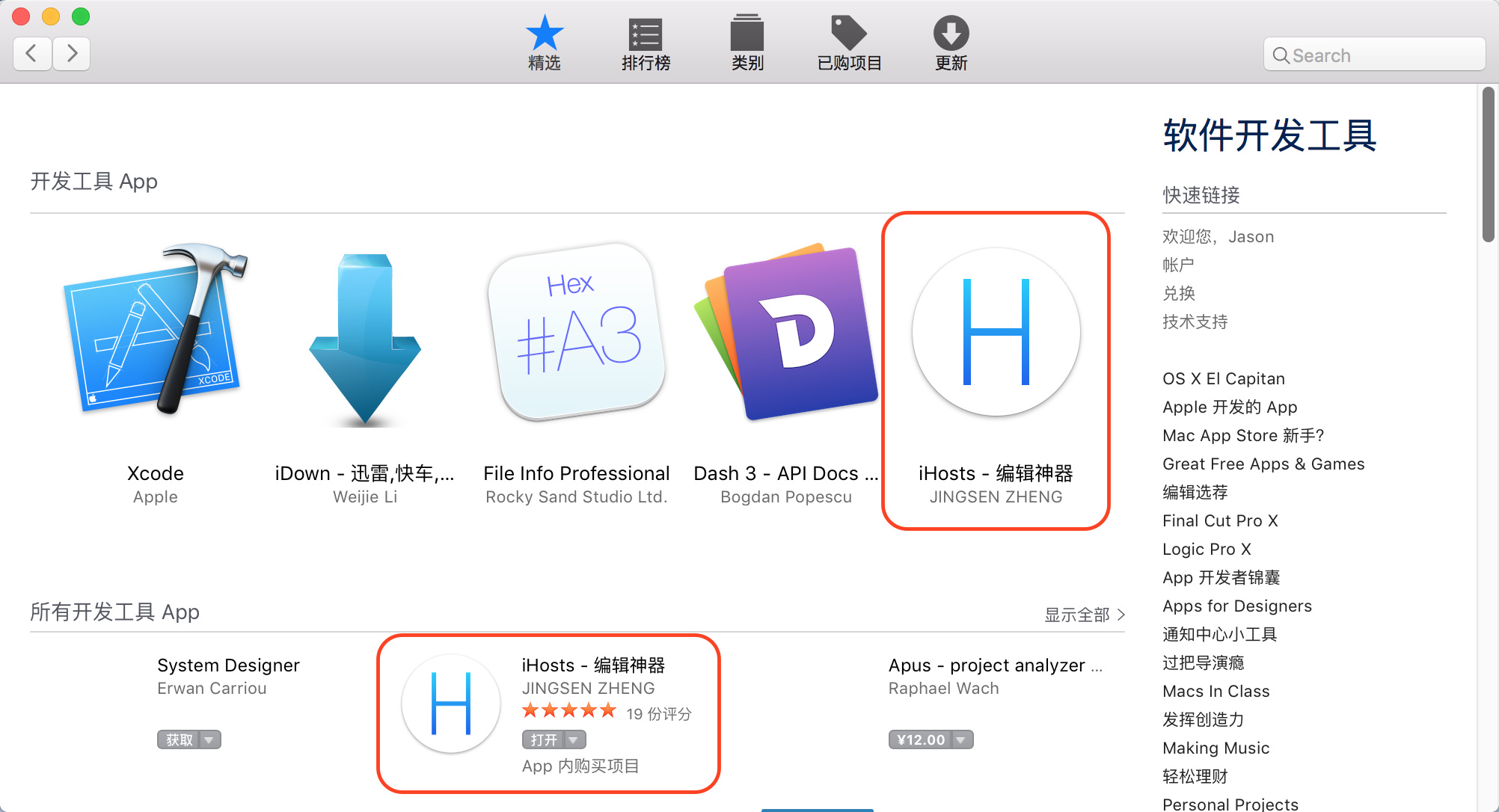
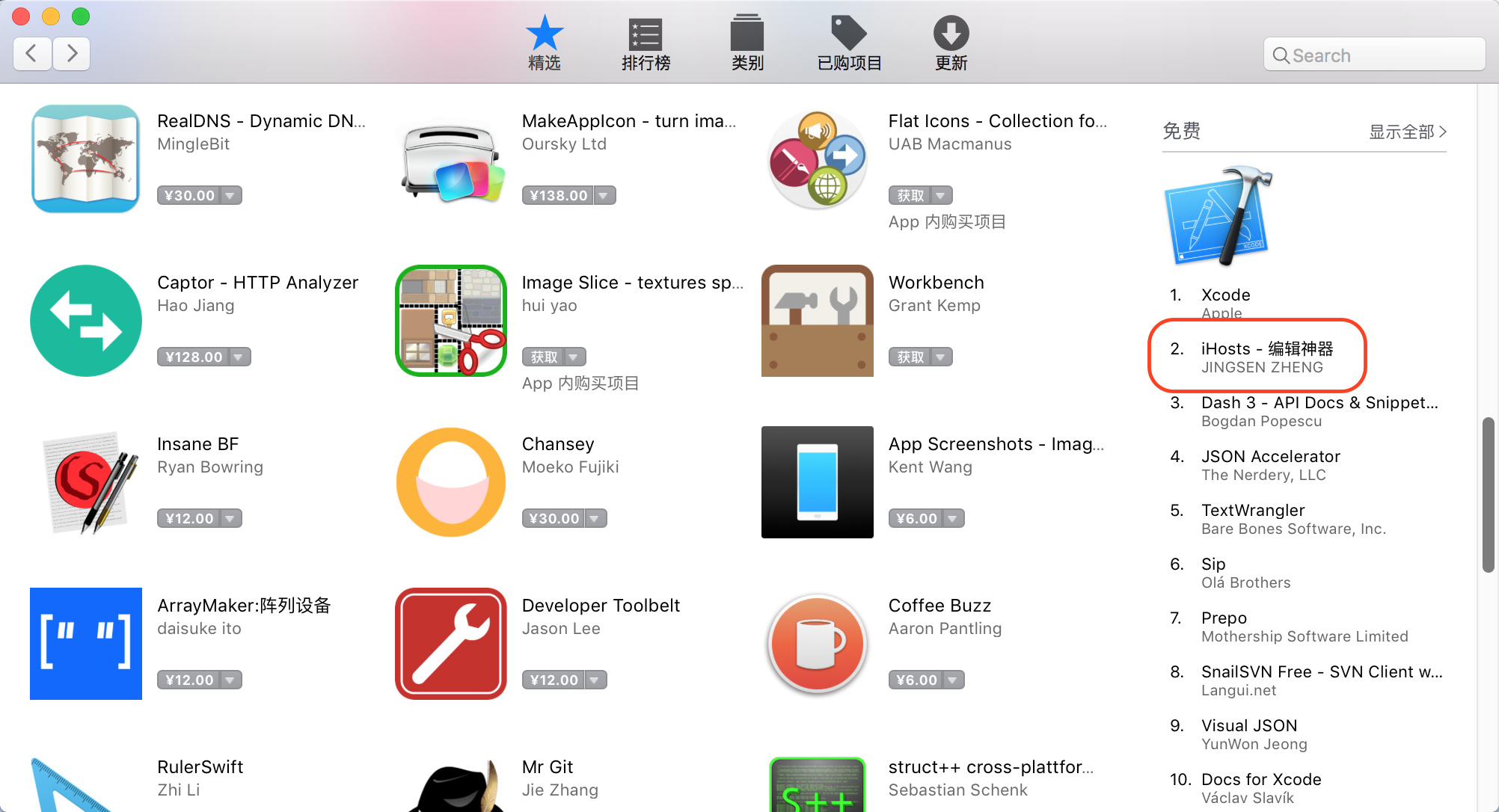
    <content type="html"><![CDATA[<p><a href="https://itunes.apple.com/app/id1102004240?ls=1&amp;mt=12&amp;at=1000lv4R&amp;ct=iHosts_home" target="_blank" rel="external">iHosts</a>, the perfect tool for editing /etc/hosts, hits the No. 2 App on Mac App Store (Category: Developer Tools, Chinese Store). Cool~</p>
<p><img src="https://p.nuli.life/blog/jypl4.jpg" alt=""></p>
<p><img src="https://p.nuli.life/blog/xf7mw.jpg" alt=""></p>
<p>Please help to <a href="https://itunes.apple.com/app/id1102004240?ls=1&amp;mt=12&amp;at=1000lv4R&amp;ct=iHosts_home" target="_blank" rel="external">give 5 stars to iHosts</a> if you think it’s good. Thanks in advance.</p>
]]></content>
    
    <summary type="html">
    
      &lt;p&gt;&lt;a href=&quot;https://itunes.apple.com/app/id1102004240?ls=1&amp;amp;mt=12&amp;amp;at=1000lv4R&amp;amp;ct=iHosts_home&quot; target=&quot;_blank&quot; rel=&quot;external&quot;&gt;iHos
    
    </summary>
    
      <category term="iHosts" scheme="https://en.toolinbox.net/categories/iHosts/"/>
    
    
  </entry>
  
  <entry>
    <title>iTimer Change Log</title>
    <link href="https://en.toolinbox.net/iTimer/ChangeLog.html"/>
    <id>https://en.toolinbox.net/iTimer/ChangeLog.html</id>
    <published>2015-11-22T10:32:16.000Z</published>
    <updated>2022-12-17T09:02:44.210Z</updated>
    
    <content type="html"><![CDATA[<h1 id="v1-3-0"><a href="#v1-3-0" class="headerlink" title="v1.3.0"></a>v1.3.0</h1><p>2016/12/28</p>
<ul>
<li>Could customize timers.</li>
<li>Fit to Swift 3.</li>
</ul>
<h1 id="v1-2-3"><a href="#v1-2-3" class="headerlink" title="v1.2.3"></a>v1.2.3</h1><p>2016/09/26</p>
<ul>
<li>Change App name to <strong>iTimer</strong>, also update logo.</li>
<li>Add more timers.</li>
<li>Support macOS Sierra.</li>
</ul>
<a id="more"></a>
<h1 id="v0-6-2"><a href="#v0-6-2" class="headerlink" title="v0.6.2"></a>v0.6.2</h1><p>2015/12/15</p>
<ul>
<li>Remind to start timer.</li>
<li>Support start at login.</li>
</ul>
<h1 id="v0-5-1"><a href="#v0-5-1" class="headerlink" title="v0.5.1"></a>v0.5.1</h1><p>2015/12/05</p>
<ul>
<li>Release on Mac App Store</li>
</ul>
]]></content>
    
    <summary type="html">
    
      &lt;h1 id=&quot;v1-3-0&quot;&gt;&lt;a href=&quot;#v1-3-0&quot; class=&quot;headerlink&quot; title=&quot;v1.3.0&quot;&gt;&lt;/a&gt;v1.3.0&lt;/h1&gt;&lt;p&gt;2016/12/28&lt;/p&gt;
&lt;ul&gt;
&lt;li&gt;Could customize timers.&lt;/li&gt;
&lt;li&gt;Fit to Swift 3.&lt;/li&gt;
&lt;/ul&gt;
&lt;h1 id=&quot;v1-2-3&quot;&gt;&lt;a href=&quot;#v1-2-3&quot; class=&quot;headerlink&quot; title=&quot;v1.2.3&quot;&gt;&lt;/a&gt;v1.2.3&lt;/h1&gt;&lt;p&gt;2016/09/26&lt;/p&gt;
&lt;ul&gt;
&lt;li&gt;Change App name to &lt;strong&gt;iTimer&lt;/strong&gt;, also update logo.&lt;/li&gt;
&lt;li&gt;Add more timers.&lt;/li&gt;
&lt;li&gt;Support macOS Sierra.&lt;/li&gt;
&lt;/ul&gt;
    
    </summary>
    
      <category term="iTimer" scheme="https://en.toolinbox.net/categories/iTimer/"/>
    
    
  </entry>
  
</feed>